How to remove old resumes from LinkedIn depends on where you stored them. Delete resumes from Job Application Settings by going to Settings & Privacy, then Data Privacy, then Job Application Settings. Remove resumes from your Featured section by editing your profile. Clear resume attachments from Experience entries by editing individual job listings. LinkedIn stores resumes in three different places requiring separate deletion steps.
Most people don’t realize LinkedIn saves every resume you’ve uploaded. You might have five different versions floating around from various job applications over the years. Those outdated resumes with wrong contact info, old job titles, or formatting issues stay visible until you manually delete them.
LinkedIn’s Help Center confirms these documents persist indefinitely unless you actively remove them. Old resumes create confusion during applications and potentially send wrong information to recruiters. Cleaning up your stored resumes takes five minutes and prevents embarrassing mistakes.
Why You Should Remove Old LinkedIn Resumes
Old resumes on LinkedIn create real problems beyond just cluttering your account. Understanding why deletion helps motivates you to actually do the cleanup work nobody enjoys doing.
Outdated contact information appears on old resumes. Your previous phone number, old email address, or former city all send wrong details to recruiters. They’ll try contacting you at numbers that don’t work anymore. You’re missing opportunities because of stored documents you forgot existed.
Wrong job titles and employment dates confuse hiring managers. Your 2021 resume shows you as “Marketing Coordinator” but you’re now “Senior Marketing Manager.” Recruiters seeing the old version think you’re less experienced than you are. This mismatch hurts your chances during competitive hiring.
Formatting disasters from years ago make you look unprofessional. That resume you created five years ago used weird fonts, poor spacing, or outdated design. You’ve learned better formatting since then. Why let recruiters see your amateur work from 2019? Understanding opportunities across basic industries requires current information.
Easy Apply pulls the wrong resume automatically. LinkedIn grabs your most recently uploaded document for Easy Apply applications. If that’s your outdated 2022 resume instead of your polished 2025 version, you’re sending wrong information to every single application. This wastes your time applying with bad materials.
Multiple versions create confusion about which resume is current. You’ve got six different files saved. Which one has your latest job? Which includes your newest certification? Keeping multiple versions guarantees you’ll eventually send the wrong one by accident.

Deleting Resumes from Job Application Settings
LinkedIn’s Job Application Settings store resumes you’ve used for Easy Apply applications. This is where most people find multiple old versions sitting around causing problems.
Log into LinkedIn using a desktop browser because mobile apps don’t provide full access to these settings. You can’t delete stored resumes from the LinkedIn mobile app. Desktop or laptop computers are required for this cleanup.
Click the Me icon at the top right of your LinkedIn homepage. This opens your account menu with various options. Select Settings & Privacy from the dropdown menu that appears.
Navigate to Data Privacy on the left-hand menu. LinkedIn organizes privacy controls into several categories. Data Privacy contains controls about information LinkedIn stores about you.
Scroll down to the Job Seeking Preferences section partway down the page. This area controls settings related to job searching and applications. Click on Job Application Settings to expand these options.
Under Manage Your Resumes, you’ll see every resume file LinkedIn has saved. Each document shows the filename and upload date. Click the three dots next to any old resume you want removed.
Select Delete from the dropdown menu that appears. LinkedIn will ask you to confirm deletion. Click Delete again to permanently remove that resume file. Repeat this process for each outdated resume you find. Following professional standards includes keeping stored documents current.
Important note about deletion limits. LinkedIn only shows your most recent resume files in this section. If you’ve uploaded 20 resumes over the years, you might only see the 10 most recent ones. Older files eventually drop off automatically but can take months or years.
Removing Resumes from Your Profile Featured Section
The Featured section on your LinkedIn profile lets you showcase documents publicly. If you added a resume here to display on your profile, visitors and recruiters can see and download it.
Go to your LinkedIn profile by clicking Me then View Profile from the dropdown menu. This takes you to your public profile page showing everything visitors see about you.
Scroll down to the Featured section which typically appears near the top of your profile under your About section. Not everyone has a Featured section. If you never added content here, this section won’t appear on your profile at all.
Click the pencil edit icon in the top right corner of the Featured section. This opens editing mode showing all items you’ve featured including articles, posts, links, and documents.
Locate the resume document you want to remove. Featured items show thumbnails or icons representing the content type. Resume files typically display as document icons with PDF or DOCX labels.
Click the Remove button or X icon next to the resume. LinkedIn will ask you to confirm removal. Click Remove again to delete it from your Featured section permanently.
This removal only affects your public profile display. The resume file might still exist in your Job Application Settings or attached to Experience entries. You need to check and delete from those locations separately. Like understanding resume formatting, managing stored files requires attention to detail.
Clearing Resume Attachments from Experience Entries
LinkedIn lets you attach documents to individual job entries in your Experience section. These attachments appear on your profile and in your applications when you reference those positions.
- Scroll to the Experience section on your LinkedIn profile. This section lists all your employment history with job titles, companies, dates, and descriptions.
- Find the specific job entry where you attached a resume. Not all job entries have attachments. Look for small document icons or “Show more” links indicating attached files.
- Click the pencil edit icon next to that job title. This opens the job entry editor showing all details about that position including the description and any attached media.
- Scroll to the Media section at the bottom of the editing window. This area shows any files, links, images, or documents you’ve attached to this job entry over time.
- Click the X or Delete button on the resume file attachment. The exact button appearance varies slightly depending on your LinkedIn version and browser. Look for removal options near each attached file.
- Click Save to confirm changes and close the editor. Your resume attachment is now removed from that specific job entry. Repeat this process for each job listing where you’ve attached old resumes.
Check all your Experience entries systematically. You might have attached resumes to multiple positions over the years. Going through each job one by one ensures you find all stored documents. Understanding when to follow up on applications helps throughout job searches.
What Happens After You Delete LinkedIn Resumes
Deleting resumes from LinkedIn doesn’t affect everything immediately. Understanding what changes and what stays the same helps you set proper expectations.
Previously submitted applications keep your old resume. If you applied to 50 jobs last month using your old resume, those recruiters still have that document in their applicant tracking systems. Deletion doesn’t recall resumes already sent.
New applications use your current uploaded resume. After deleting old versions and uploading a fresh resume, future Easy Apply applications will use the new document automatically. This ensures you’re sending current information going forward.
Your profile information stays unchanged. Removing resume files doesn’t affect your profile headline, about section, experience entries, or skills. Those profile sections remain exactly as you’ve written them.
Featured section changes appear immediately. If you removed a resume from your Featured section, visitors to your profile can no longer see or download that document. The change is instant and public.
Search results don’t include deleted resumes. If recruiters were finding your profile through keywords in your old resume file, those search pathways disappear after deletion. This might affect visibility temporarily until your new resume gets indexed.
Best Practices for Managing LinkedIn Resumes
Following strategic approaches to LinkedIn resume management prevents future cleanup headaches. These practices keep your account organized and professional long-term.
Upload only your best current resume. Don’t upload multiple versions “just in case” you might need different formats. Choose your strongest, most current resume and upload only that one document.
Update your stored resume whenever you update your actual resume. Revised your resume to add a new job or certification? Upload the new version to LinkedIn immediately and delete the old one. Keeping them synchronized prevents sending outdated documents.
Use descriptive filenames for your resumes. “Resume_John_Smith_2025.pdf” is way more helpful than “Document1.pdf” when you’re looking at stored files. Clear naming helps you identify which version is which months later.
Regularly audit your stored documents quarterly. Set a reminder every three months to check what resumes LinkedIn has stored. Delete anything outdated and verify your current resume is the only version saved.
Keep offline backups of all resume versions. Don’t rely on LinkedIn as your resume storage system. Save copies to your computer, cloud storage, or email. LinkedIn is for applications, not archiving. Similar to understanding compensation across specialized fields, managing career documents requires organization.
Optimizing Your LinkedIn Profile and Applications
Beyond just removing old resumes, optimizing your complete LinkedIn presence improves your job search results significantly.
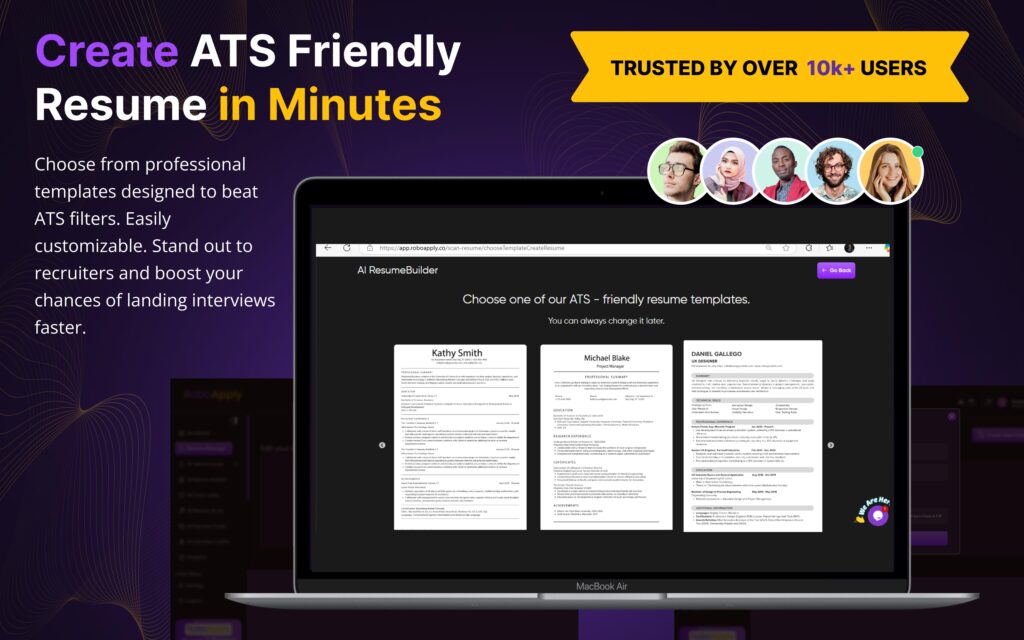
RoboApply’s AI Resume Builder helps you create current, optimized resumes worth uploading to LinkedIn. The platform formats your experience professionally while emphasizing achievements over responsibilities.
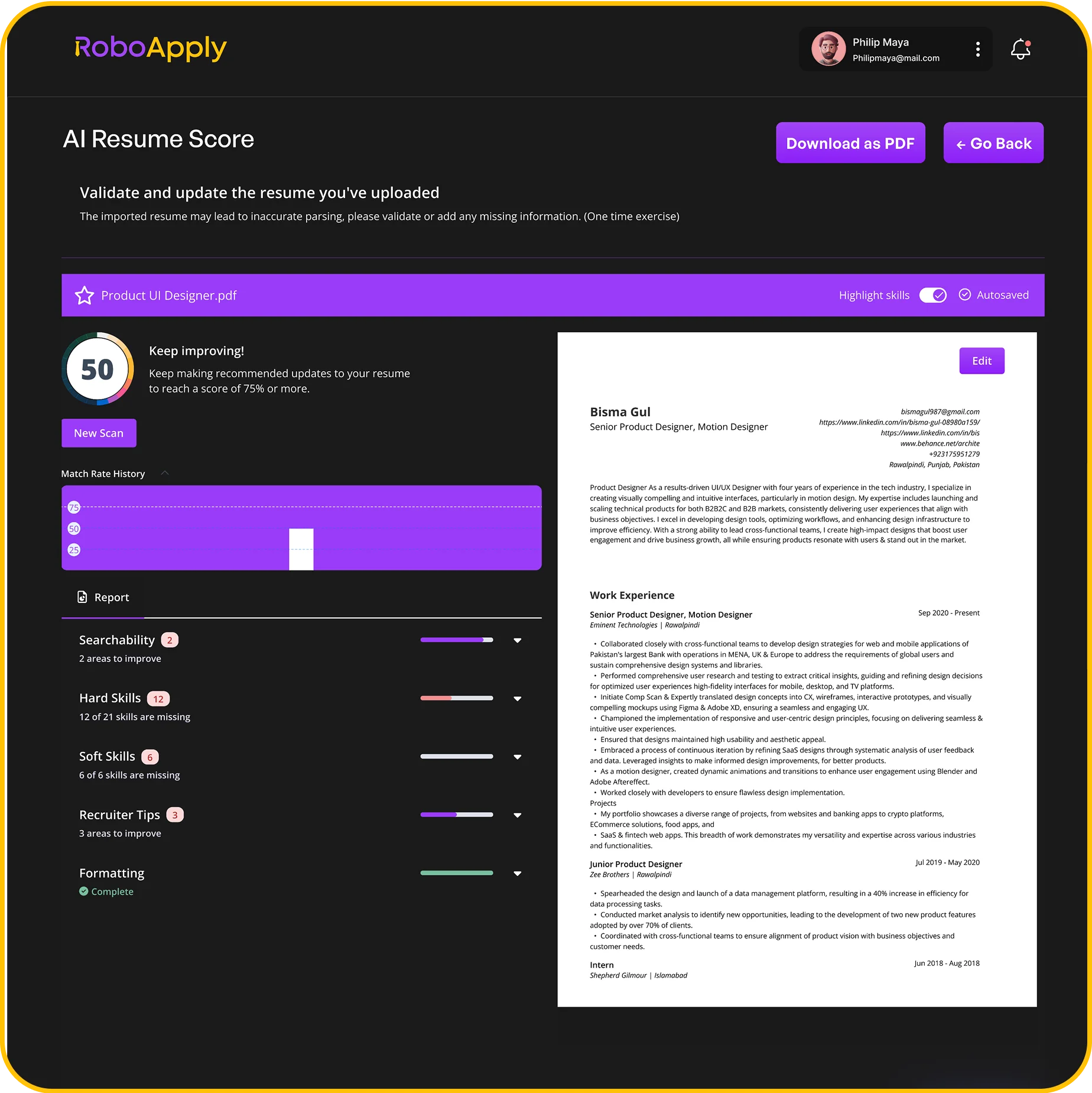
The Resume Score feature analyzes your resume before you upload it anywhere. You’ll see which sections need strengthening and get specific improvement suggestions immediately.
AI Auto Apply manages applications across LinkedIn and other platforms efficiently. You’re not manually clicking Easy Apply repeatedly. The platform handles submissions while you focus on interview preparation.
Frequently Asked Questions
How do I delete old resumes from LinkedIn?
Go to Settings & Privacy, then Data Privacy, then Job Application Settings. Find old resumes under Manage Your Resumes and click delete on each one.
Can I delete resumes from LinkedIn mobile app?
No, you must use a desktop browser to access Job Application Settings where LinkedIn stores resumes. Mobile apps don’t provide this functionality currently.
Will deleting my LinkedIn resume affect past applications?
No, recruiters who received your resume through previous applications will still have it in their systems. Deletion only affects future applications going forward.
Where else might my resume be stored on LinkedIn?
Check your Featured section and individual Experience entries for attached resume files. LinkedIn stores resumes in three separate locations requiring individual deletion.
How often should I update my LinkedIn resume?
Update your stored LinkedIn resume whenever you revise your actual resume. Quarterly audits help ensure you’re not accumulating old versions accidentally.