Learning how to turn off open for work on LinkedIn takes less than two minutes. You’ll open your LinkedIn profile. Click the “Open to work” section. Select “No longer open.” Then save your changes. The green circle and “Open to work” badge disappear immediately from your profile photo.
You might’ve landed a new job. Or maybe you’re taking a break from your search. Perhaps you’re getting too many recruiter messages. Whatever your reason, removing the open to work status is simple. Your profile stays visible. You just stop advertising that you’re actively job hunting.
The open to work feature helps recruiters find candidates. But it also signals to your current employer that you’re looking. LinkedIn data shows that profiles with this setting get contacted by recruiters 2x more often. Sometimes that’s not what you want anymore.
Why You Might Want to Remove Open to Work
Several situations call for turning off this visibility setting. Understanding when makes sense helps you use LinkedIn strategically.
You Accepted a Job Offer
Once you’ve accepted a position, you’ll want to turn off the badge. Leaving it active confuses recruiters. They’ll keep messaging you about opportunities. You’ll waste time explaining you’re no longer available.
Your new employer might also check your profile. Seeing you’re still “open to work” on your first day sends a bad message. It suggests you’re not committed to the role.
You’re Taking a Job Search Break
Job hunting exhausts people. Maybe you need time to regroup. Perhaps you’re focusing on upskilling first. Or you’re dealing with personal matters.
Taking the open to work off LinkedIn signals you’re pausing. Recruiters stop reaching out. You reduce inbox clutter. You can reactivate it later when ready.
You’re Getting Irrelevant Messages
The open to work feature doesn’t filter well. You might get messages for roles way below your level. Or opportunities in completely different fields. Some recruiters spam everyone with the badge.
Removing it cuts down on noise. You’ll still appear in targeted searches. But you’ll avoid the spray-and-pray recruiter messages.
Your Current Employer Might See It
If you’re employed but exploring options, the badge creates risk. Colleagues might notice. Your manager could see it. This could hurt your current position.
Even with settings on “recruiters only,” the information sometimes leaks. Playing it safe means removing the badge. You can still network and apply quietly.
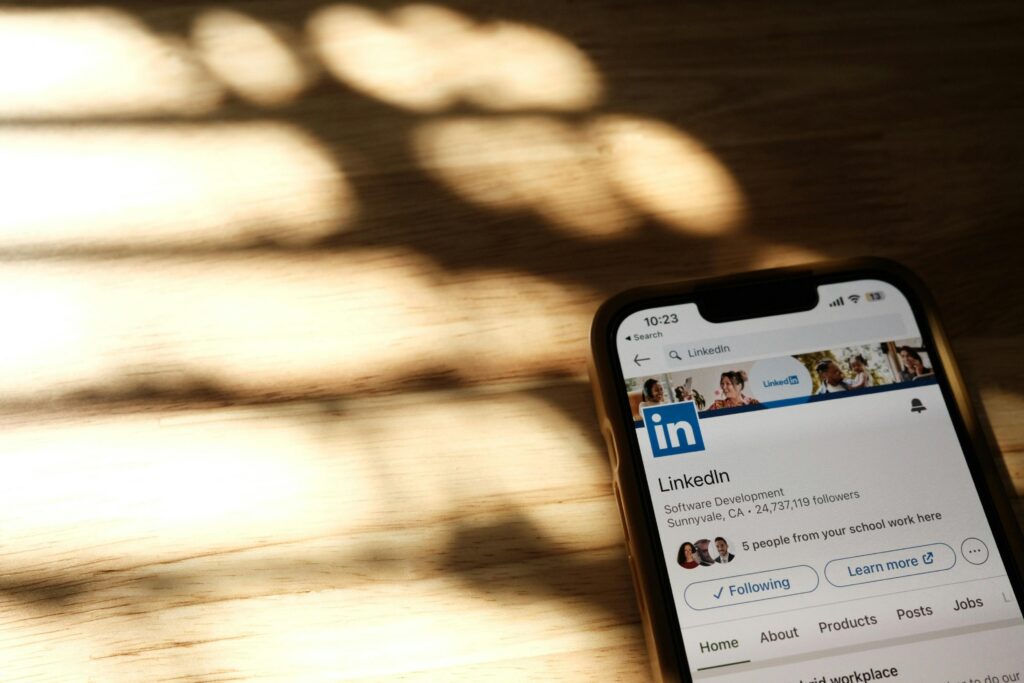
Step-by-Step: How to Turn Off Open to Work on LinkedIn
Here’s the exact process for removing the open to work status from your profile. This works on both desktop and mobile.
On Desktop Computer
Start by logging into LinkedIn through your web browser. Click on your profile photo in the top right corner. Select “View profile” from the dropdown menu.
Scroll down slightly on your profile page. You’ll see the “Open to work” section below your profile photo. It appears as a green circle with text.
Click directly on the “Open to work” section. A popup window opens showing your job preferences. Look for the toggle or button that says “Open to work.”
Click the toggle to turn it off. Or select “No longer open” from the options. The system asks if you’re sure. Confirm your choice.
Click “Save” at the bottom of the popup. The green circle disappears from your profile photo immediately. The “Open to work” text also vanishes.
On Mobile App
Open the LinkedIn app on your phone. Tap your profile photo in the top left corner. This takes you to your profile view.
Look for the “Open to work” section below your photo. Tap directly on it. Your job search preferences screen opens.
Find the “Open to work” toggle at the top. Slide it to the off position. The toggle turns gray when disabled.
Tap “Save” in the upper right corner. The app confirms your changes. The badge removes from your profile instantly.
Verification Steps
After turning off the setting, check your profile from a different account. Ask a friend to view your profile. Or use an incognito browser window. This confirms the badge is truly gone.
Sometimes LinkedIn’s cache causes delays. Refresh your profile page. Clear your browser cache if needed. The change should appear within minutes for everyone.
What Happens After You Turn Off Open to Work
Removing the open to work badge changes how recruiters interact with your profile. Understanding these effects helps you plan your next steps.
Reduced Recruiter Visibility
You’ll appear in fewer recruiter searches. LinkedIn’s algorithm deprioritizes profiles without the badge. Recruiters specifically looking for active candidates won’t find you as easily.
Your profile still shows up in general searches. But you lose the “actively looking” signal. Research from Jobscan indicates this can reduce recruiter messages by 60-70%.
Your Profile Stays Public
Turning off open to work doesn’t hide your profile. Your connections still see your updates. Recruiters can still find you through keywords. You’re just not flagged as actively searching.
Think of it like taking down a “For Sale” sign. The house still exists. But you’re not advertising it anymore.
You Can Still Apply to Jobs
This setting only affects your visibility to recruiters. You can still browse job postings. You can apply through LinkedIn. You can message hiring managers directly.
The difference is passive versus active searching. You’re controlling outreach instead of receiving it.
Managing Your LinkedIn Presence Without the Badge
You don’t need the open to work badge to find opportunities. Here’s how to stay visible strategically.
Optimize Your Profile
Keep your profile updated with recent accomplishments. Add new skills regularly. Request recommendations from colleagues. LinkedIn profiles with recommendations get viewed 3x more often.
Write a compelling headline that shows your value. Update your summary with concrete achievements. Use keywords that recruiters search for in your industry.
Stay Active With Content
Post updates about industry topics. Share relevant articles. Comment on others’ posts thoughtfully. This keeps you visible in your network’s feeds.
Active profiles rank higher in LinkedIn searches. You’ll appear when recruiters look for people in your field. You don’t need the badge to get noticed.
Network Intentionally
Connect with people in companies you’re interested in. Join industry groups and participate. Attend virtual events through LinkedIn. These actions build relationships naturally.
When opportunities arise, your network thinks of you. This beats random recruiter messages. You’re creating targeted opportunities instead.
When to Turn Open to Work Back On
You might reactivate this feature later. Knowing when helps you use it strategically.
Starting a New Search
If you decide to look again, turn the badge back on. Follow the same steps but toggle it to “on” instead. Update your job preferences to reflect what you want now.
Your network gets notified when you reactivate it. This can actually help. People in your feed might share relevant opportunities.
After a Probation Period
Many people turn it on after passing their new job’s probation period. You’re secure in your role. But you’re open to better opportunities.
This approach balances security and advancement. You’re not desperately searching. You’re strategically available.
Testing the Market
Sometimes you just want to see what’s available. Turning on the badge for a month shows you current opportunities. You can gauge your market value. Then turn it off if nothing interests you.
Streamlining Your Job Search Strategy
Managing your LinkedIn presence is just one part of job searching. When you’re ready to actively apply again, efficiency matters.
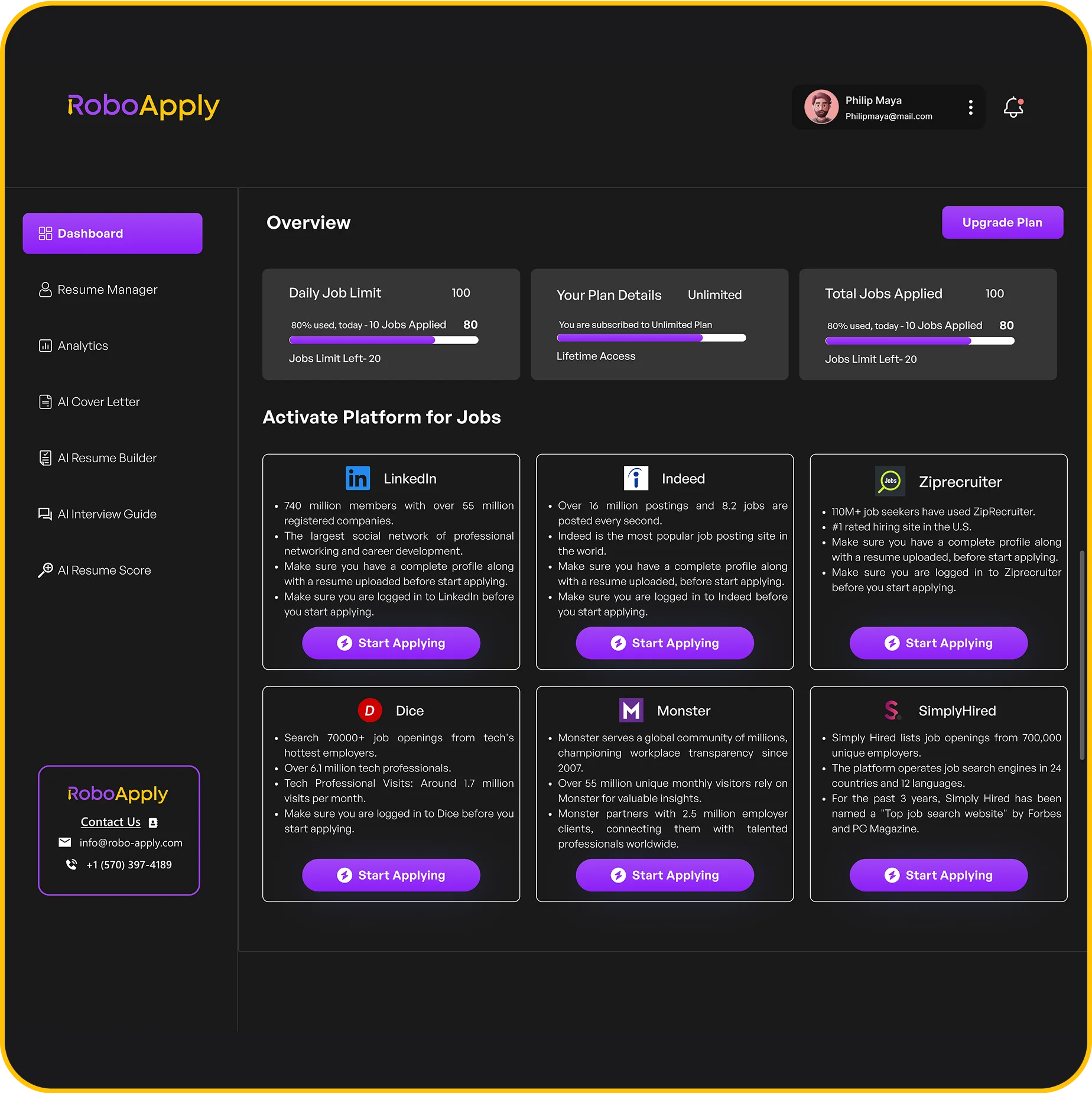
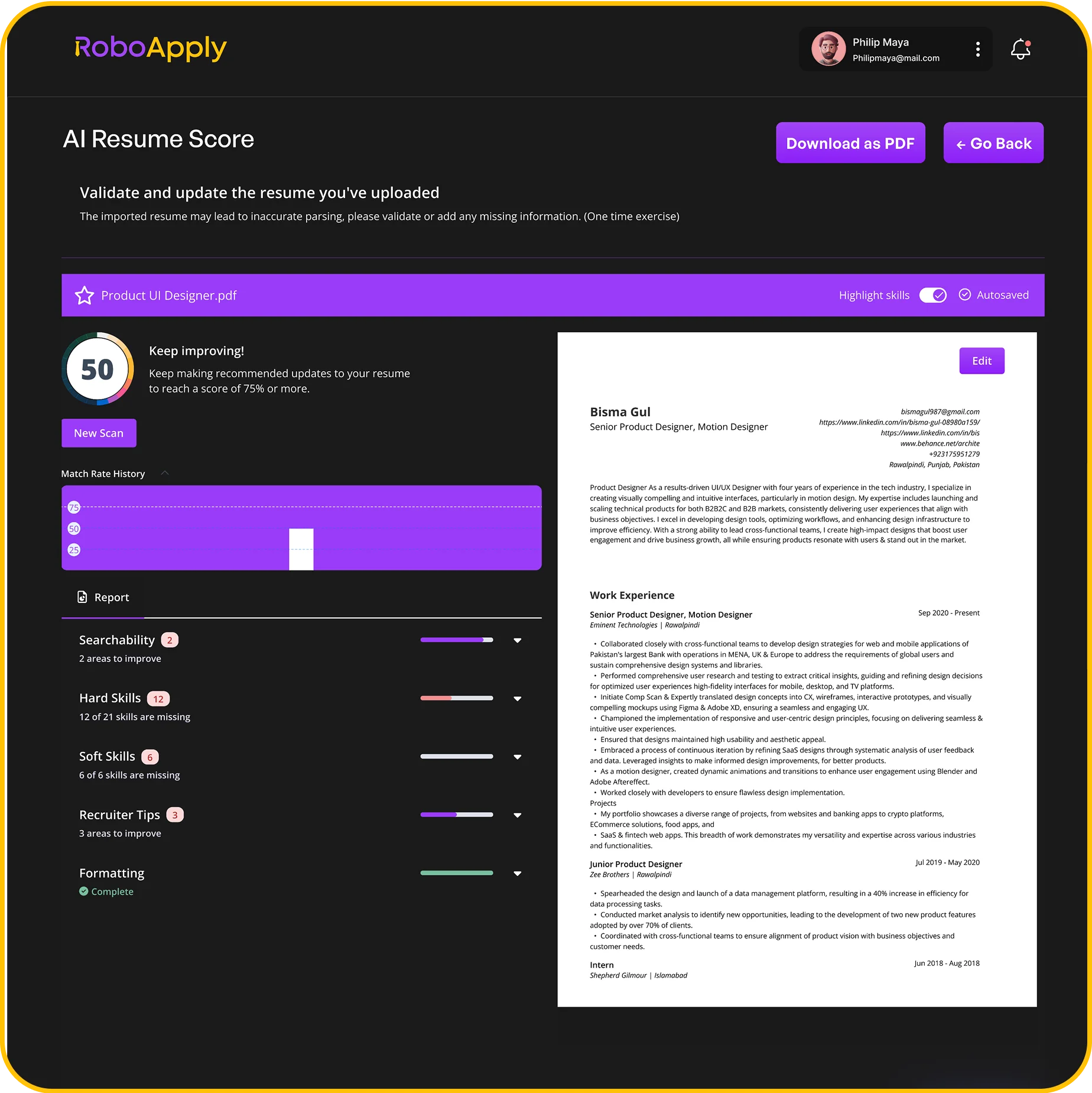
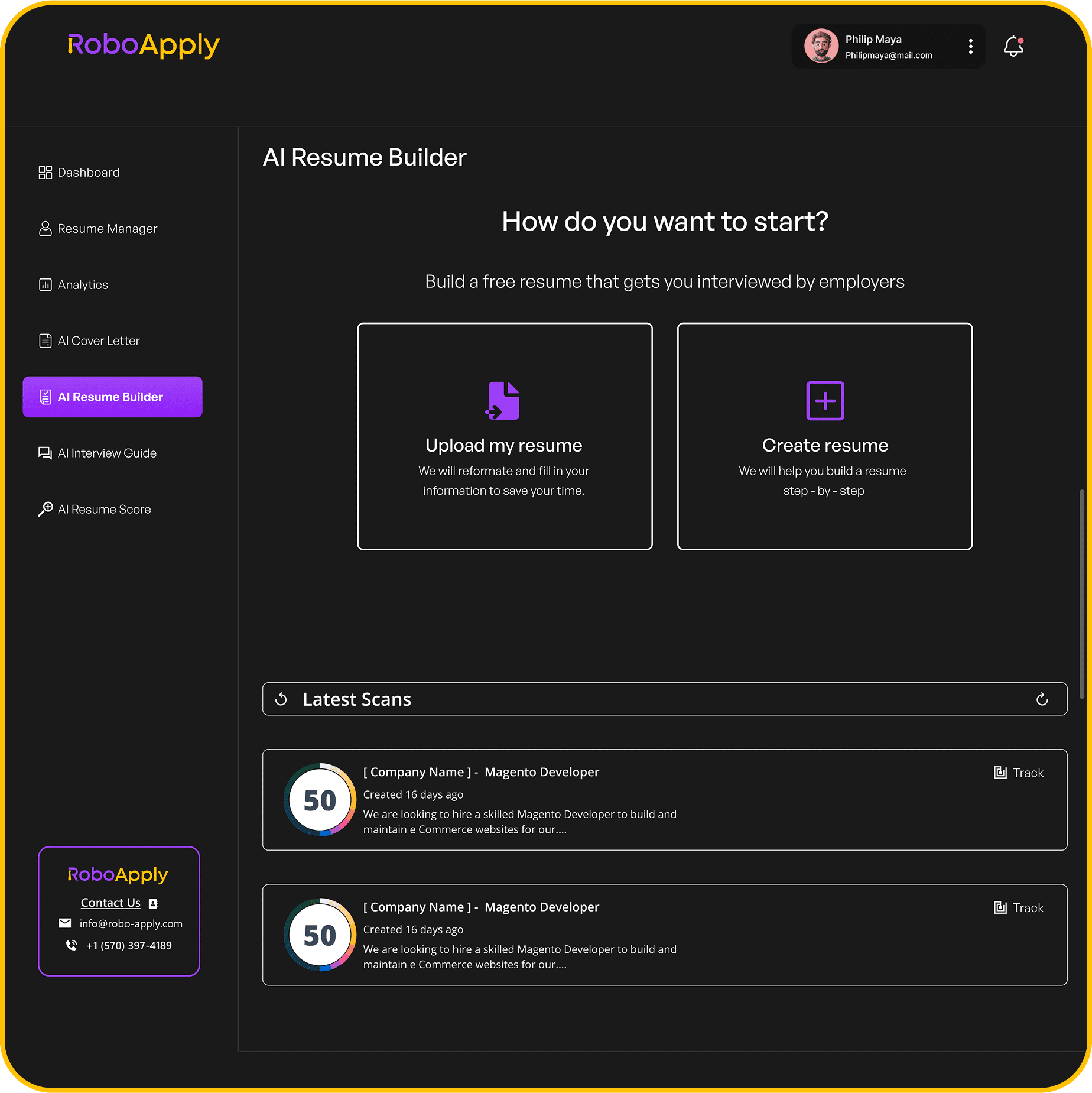
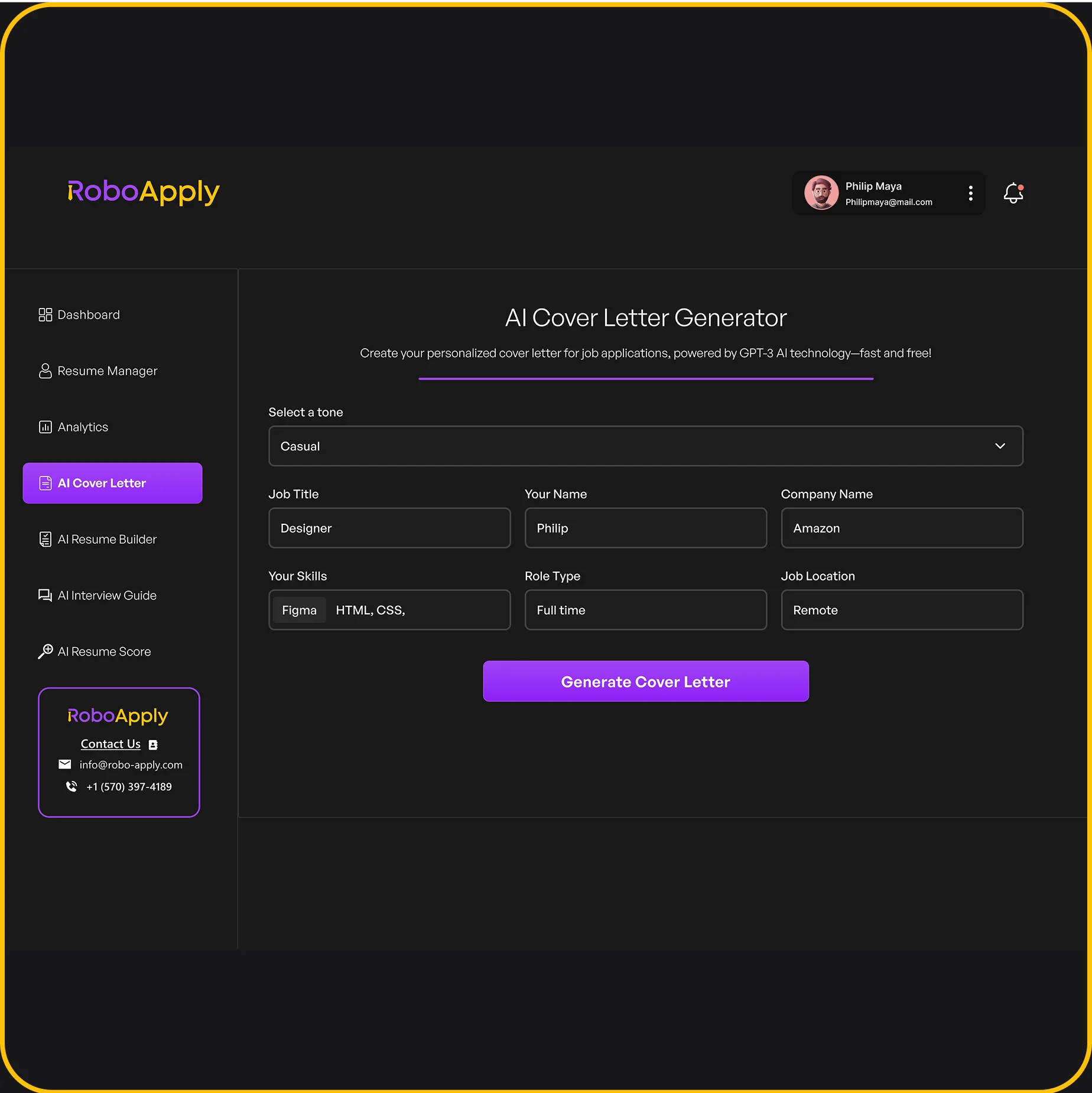
RoboApply’s AI Resume Builder keeps your application materials current. Update your resume once. The platform tailors it for each job automatically. You’ll spend less time formatting and more time applying.
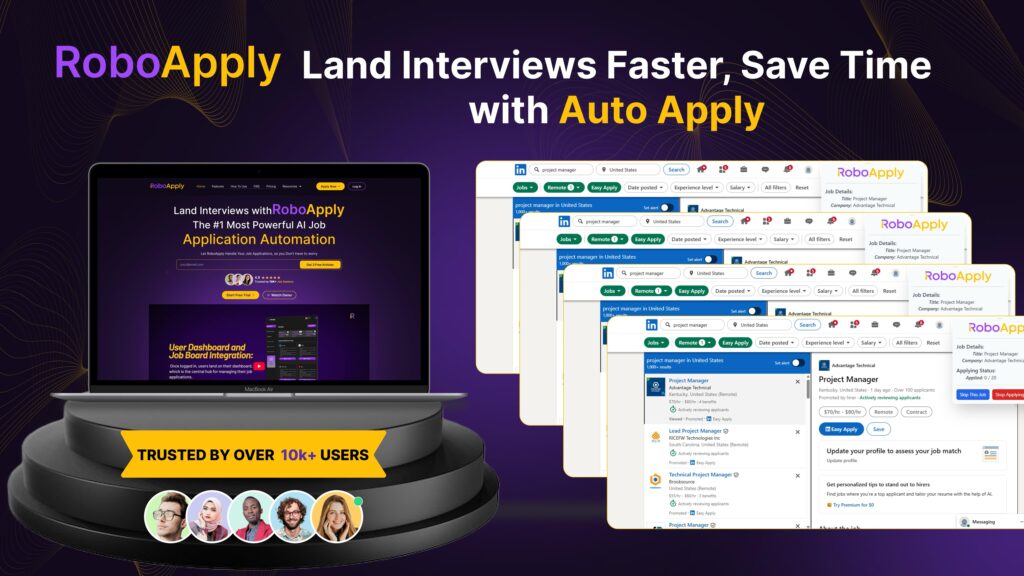
The AI Auto Apply feature submits applications while you focus on networking. It applies to hundreds of relevant positions daily. Your profile stays updated. You’re actively applying without the manual work.
Interview Copilot prepares you for opportunities that come through. Whether from LinkedIn messages or applications, you’ll be ready. The tool helps you practice answers and build confidence.
When you turn off open to work on LinkedIn, you’re not giving up. You’re taking control of your job search approach. Smart tools help you stay active without broadcasting to everyone.
The Analytics dashboard tracks which applications get responses. You’ll see patterns in what works. This data helps you refine your strategy whether your LinkedIn badge is on or off.
Frequently Asked Questions
How do I turn off open to work in LinkedIn quickly?
Click your profile photo, select “View profile,” tap the “Open to work” section, toggle it off, and save changes immediately.
Will turning off open to work affect my job applications?
No, you can still apply to jobs and message recruiters. It only removes the badge signaling you’re actively searching.
Can I turn the open to work badge back on later?
Yes, follow the same steps and toggle it back on anytime. Update your job preferences when you reactivate it.
Does linked in turn off open to work automatically?
No, LinkedIn keeps the setting active until you manually turn it off. It doesn’t expire or deactivate automatically.
Will my connections know I turned off open to work?
No, LinkedIn doesn’t notify your network when you remove this setting. The badge simply disappears from your profile quietly.