How do i download my resume from indeed? Log into your Indeed account, click “Resume” in the top right corner, select your resume, click the three dots menu, choose “Download,” and select your preferred file format (PDF or Word). The file downloads immediately to your device. The entire process takes less than 30 seconds.
Downloading your Indeed resume gives you a local copy for applications outside Indeed. You’ll need this file for company websites, email applications, or networking purposes. Having an offline version ensures you control your resume access always.
Research from Indeed shows that 65% of job applications happen outside their platform. Companies prefer receiving resumes directly. You’ll need to download your Indeed resume to apply through most employer websites or applicant tracking systems.
Why Download Your Indeed Resume
Understanding when you need a downloaded copy helps you prepare for various application scenarios. Indeed’s platform serves one purpose. External applications require different approaches.
Applications Outside Indeed’s Platform
Most companies use their own applicant tracking systems. They don’t integrate with Indeed’s resume storage. You’ll need to upload files directly to their systems.
Common situations requiring downloads:
- Applying through company career pages
- Sending resumes via email to recruiters
- Uploading to other job boards like LinkedIn
- Bringing printed copies to interviews
- Submitting applications through recruitment agencies
- Applying for government positions with specific portals
Each platform has different requirements. Having your resume downloaded ensures readiness for any application method. Similar to understanding various career paths, knowing different application channels matters.
Backup and Version Control
Technology fails occasionally. Indeed could experience outages during critical application periods. Local copies protect against these disruptions.
Benefits of maintaining downloaded versions:
- Access your resume without internet connection
- Preserve specific versions for different job types
- Recover information if Indeed account gets locked
- Compare changes across multiple resume iterations
- Share easily with mentors or career counselors
Keep multiple dated versions. Label them clearly like “Resume_MarketingRoles_Jan2026.pdf” for easy identification.
Editing Flexibility Outside Indeed
Indeed’s editor has limitations. Downloading lets you customize extensively using professional software. You gain full control over formatting and design.
Advanced editing capabilities include:
- Custom fonts and advanced typography
- Precise spacing and margin adjustments
- Color schemes matching your personal brand
- Charts, graphs, or visual elements
- Multiple column layouts
- Industry-specific formatting requirements
Professional resume builders offer features Indeed doesn’t. Downloading gives you the foundation to enhance further. Understanding formatting standards helps improve downloaded resumes.
Step-by-Step Download Process
The download process varies slightly between devices and browsers. Following the correct procedure for your situation ensures success.
Desktop Computer Download
Most people download resumes using desktop computers. The larger screen makes navigation easier. The process works identically across Windows and Mac systems.
Navigate to Indeed’s homepage. Log into your account using your credentials. Click the account icon displaying your name in the top right corner.
Select “Resume” from the dropdown menu. You’ll see all resumes stored in your account. Most users have one or two versions saved.
Locate the resume you want to download. Click the three-dot menu icon next to it. This opens additional options.
Select “Download” from the menu choices. A popup appears asking for format preference.
Choose between PDF or Word document (.docx). PDF maintains formatting perfectly. Word allows further editing. Select based on your needs.
The file downloads to your default download folder. Check your browser’s download bar for confirmation. The file name includes “Indeed” and your name automatically.
Mobile App Download Process
Indeed’s mobile app functions differently than the website. The interface adapts for smaller screens. Downloads work but require different navigation steps.
Open the Indeed mobile app. Tap the menu icon (three horizontal lines) in the top left corner.
Scroll down and tap “Resume” in the menu options. This displays your stored resumes.
Tap the resume you want to download. The full resume appears on screen.
Look for the download icon (arrow pointing downward) in the top right corner. Tap it to initiate download.
Select your preferred file format when prompted. The file saves to your phone’s download folder or Files app.
Access downloaded files through your device’s file manager. Location varies by phone model (Downloads, Files, or My Files).
Web Browser Download on Mobile
Sometimes the mobile app doesn’t work properly. The web browser provides an alternative access method.
Open your mobile browser (Safari, Chrome, or Firefox). Navigate to Indeed.com. Request the desktop site in your browser settings for better functionality.
Follow the desktop instructions outlined above. The three-dot menu appears in the same location. Downloads work identically to desktop computers.
Mobile browsers save files to your downloads folder. Access them through your phone’s file management system.

Understanding File Format Options
Indeed offers two download formats. Each serves different purposes. Choosing correctly depends on your application needs.
PDF Format Advantages
PDF (Portable Document Format) maintains formatting across all devices. What you see is what employers see. No compatibility issues exist.
Choose PDF when:
- Applying through online portals that accept uploads
- Emailing resumes to recruiters or hiring managers
- You want to prevent accidental editing
- Formatting precision matters for your industry
- Printing copies for in-person interviews
According to TopResume experts, 90% of employers prefer PDF resumes. The format signals professionalism and technical competence.
PDFs look identical on all computers. Your carefully crafted formatting won’t break. Employers appreciate this consistency.
Word Document Benefits
Word documents (.docx files) allow continued editing. Applicant tracking systems sometimes parse Word files better than PDFs. Flexibility comes at the cost of potential formatting changes.
Choose Word format when:
- You plan to make additional edits
- Employers specifically request Word documents
- You’re applying through systems that prefer editable formats
- You want to customize for each specific application
- Working with a career counselor who’ll suggest changes
Word files risk formatting shifts across different software versions. Test how your resume looks before sending to employers. Understanding professional standards includes format considerations.
Converting Between Formats
Sometimes you download one format but need another. Conversion tools solve this problem quickly.
Free conversion methods:
- Microsoft Word can save documents as PDF
- Google Docs converts both directions
- Adobe Acrobat Reader converts PDF to Word
- Online tools like Zamzar or PDFtoDOC
- Preview app on Mac converts PDF to Word
Save your resume in both formats. Keep PDF for submissions. Use Word for editing. This dual approach provides maximum flexibility.
Troubleshooting Download Issues
Technical problems occasionally prevent downloads. Most issues have simple solutions. Understanding common problems saves frustration.
Resume Not Appearing in Account
You visit your resume section but see nothing listed. This situation has several possible causes.
Check these potential issues:
- You haven’t uploaded a resume to Indeed yet
- You accidentally deleted it previously
- You’re logged into wrong Indeed account
- Your browser cache needs clearing
- Indeed’s system is experiencing technical difficulties
Create a new resume if you haven’t yet. Indeed’s resume builder guides you through the process. Upload an existing file if you have one prepared.
Download Button Missing or Inactive
The download option should appear in the three-dot menu. Sometimes it doesn’t show up or won’t respond when clicked.
Solutions to try:
- Refresh your browser page
- Clear browser cache and cookies
- Try a different web browser
- Update your browser to the latest version
- Use incognito/private browsing mode
- Switch from mobile app to web browser
Contact Indeed support if problems persist. Their help center resolves technical issues efficiently.
File Won’t Open After Download
Your resume downloaded successfully but won’t open. File corruption or software incompatibility causes this problem.
Troubleshooting steps:
- Verify you have PDF reader or Word installed
- Try opening with different software
- Re-download the file (first might be corrupted)
- Check your antivirus didn’t quarantine the file
- Update your PDF or Word software
Most computers include PDF readers by default. Download free Adobe Acrobat Reader if needed. Microsoft Word requires purchase or Office 365 subscription.
Best Practices for Downloaded Resumes
Once you’ve downloaded your resume, follow smart management practices. These habits prevent problems during critical application moments.
Organized File Management
Create a dedicated folder for job search documents. Name it clearly like “Job Search 2026” or “Career Documents.” Store all resume versions there.
Use descriptive filenames:
- Include your name (employers see filename when you submit)
- Add date or version number
- Specify targeted role if you have multiple versions
- Use professional naming like “JohnSmith_Resume_2026.pdf”
Avoid filenames like “Resume.pdf” or “final_resume_v3_FINAL.docx.” These look unprofessional and create confusion.
Back up your job search folder regularly. Use cloud storage (Google Drive, Dropbox) or external drives. Losing your resume during active job searching creates unnecessary stress.
Regular Updates and Reviews
Download fresh copies quarterly. Your Indeed resume changes over time. Local copies become outdated quickly.
Set calendar reminders to:
- Review and update your resume monthly
- Download new versions after major updates
- Check that formatting still looks correct
- Verify all information remains accurate
Compare downloaded files against your Indeed version. Ensure they match perfectly. Discrepancies cause confusion during applications. Similar to following up consistently, maintaining current documents matters.
Testing Before Submission
Never submit a downloaded resume without testing it first. Open the file and review thoroughly.
Verification checklist:
- All text displays correctly without errors
- Formatting appears as intended
- No blank pages or extra spaces
- Contact information is accurate and current
- Links (if included) work properly
Email the resume to yourself. Open it on different devices. Confirm it looks correct everywhere. This testing prevents embarrassing submission errors.
Maximizing Your Downloaded Resume
Having a downloaded copy opens opportunities for enhancement. You’re not limited to Indeed’s constraints anymore.
Professional Refinement Options
Take your downloaded resume to the next level. Professional tools offer capabilities Indeed lacks.
Enhancement possibilities include:
- Hiring professional resume writers for optimization
- Using advanced design software for visual appeal
- Consulting career coaches for content improvement
- Applying for specialized industry formats
- Incorporating personal branding elements
Jobscan research shows professionally optimized resumes get 40% more callbacks. Investment in quality pays off through better results. Understanding specialized opportunities helps tailor enhancement strategies.
Strategic Application Approaches
Downloaded resumes enable sophisticated application strategies. You control exactly what employers see.
Use downloaded copies to:
- Create industry-specific versions targeting different sectors
- Emphasize different skills for various job types
- Adjust length for positions with specific requirements
- Include portfolio links for creative positions
- Remove information not relevant to specific applications
Maintain a master resume with everything. Create targeted versions for different opportunities. Label each version clearly.
Streamlining Your Resume Management
Managing multiple resume versions across platforms gets complicated. You need efficient systems for staying organized.
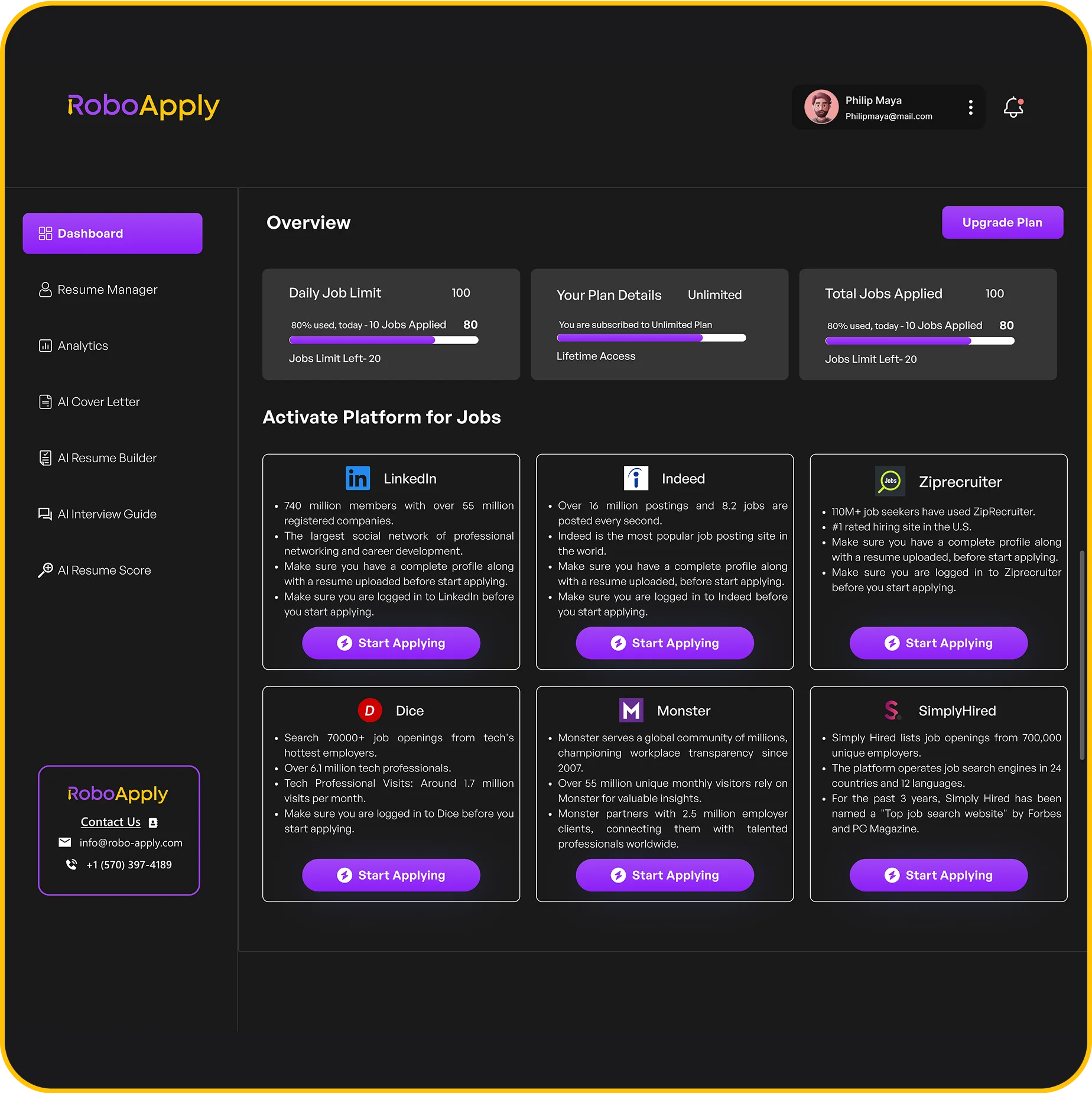
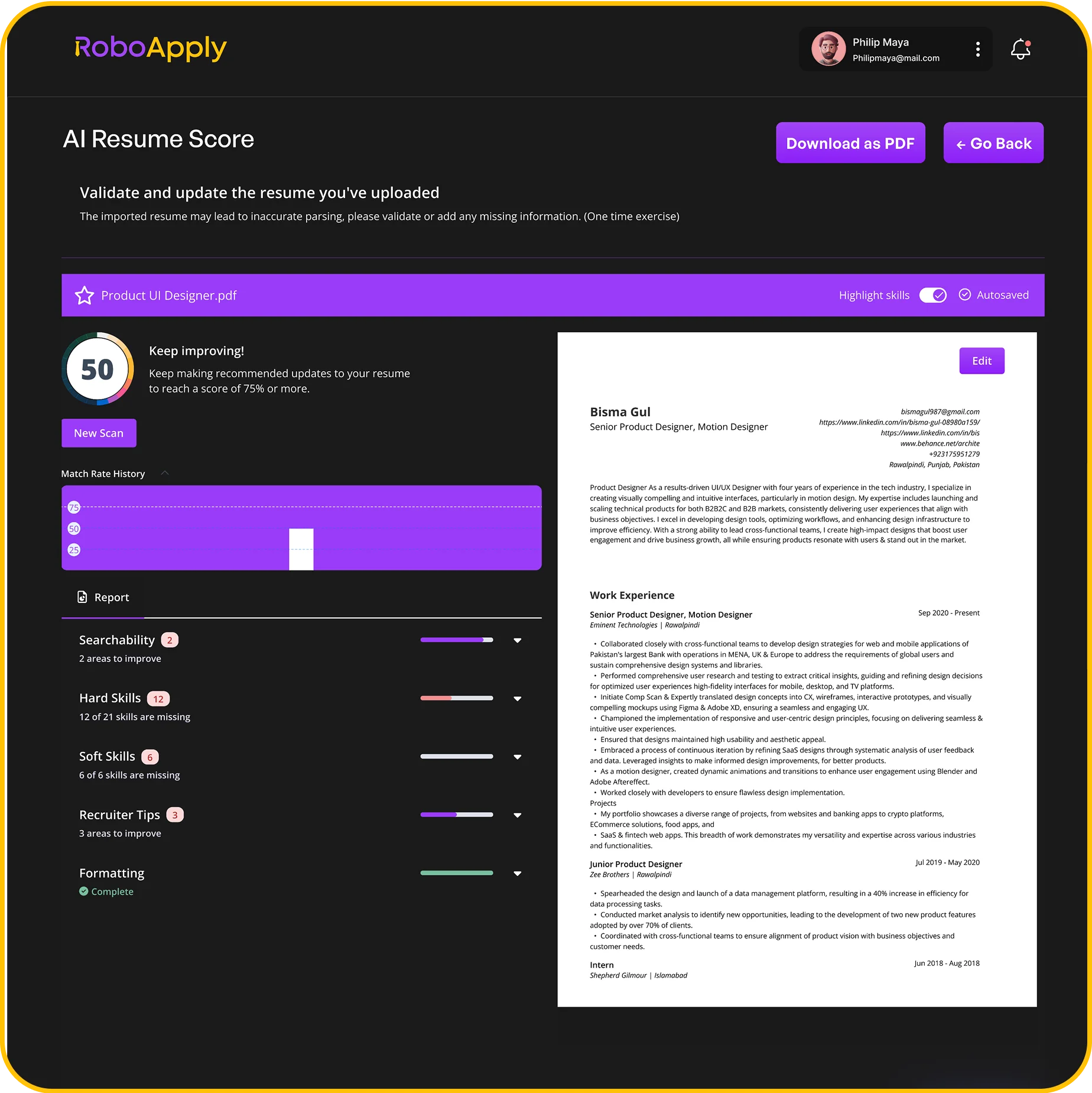
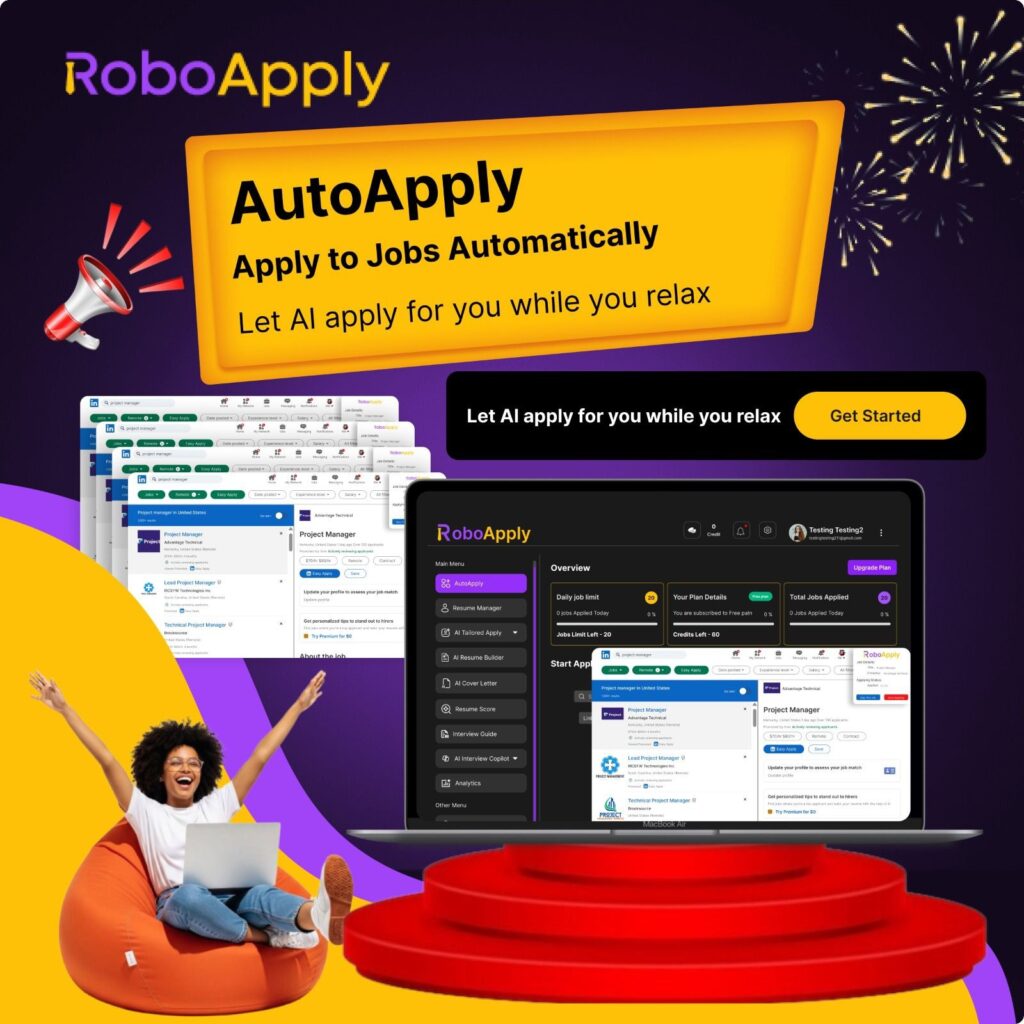
RoboApply’s AI Resume Builder helps you create optimized resumes compatible with Indeed and other platforms. The system maintains your master resume while generating targeted versions automatically. You download perfectly formatted files for any application scenario.
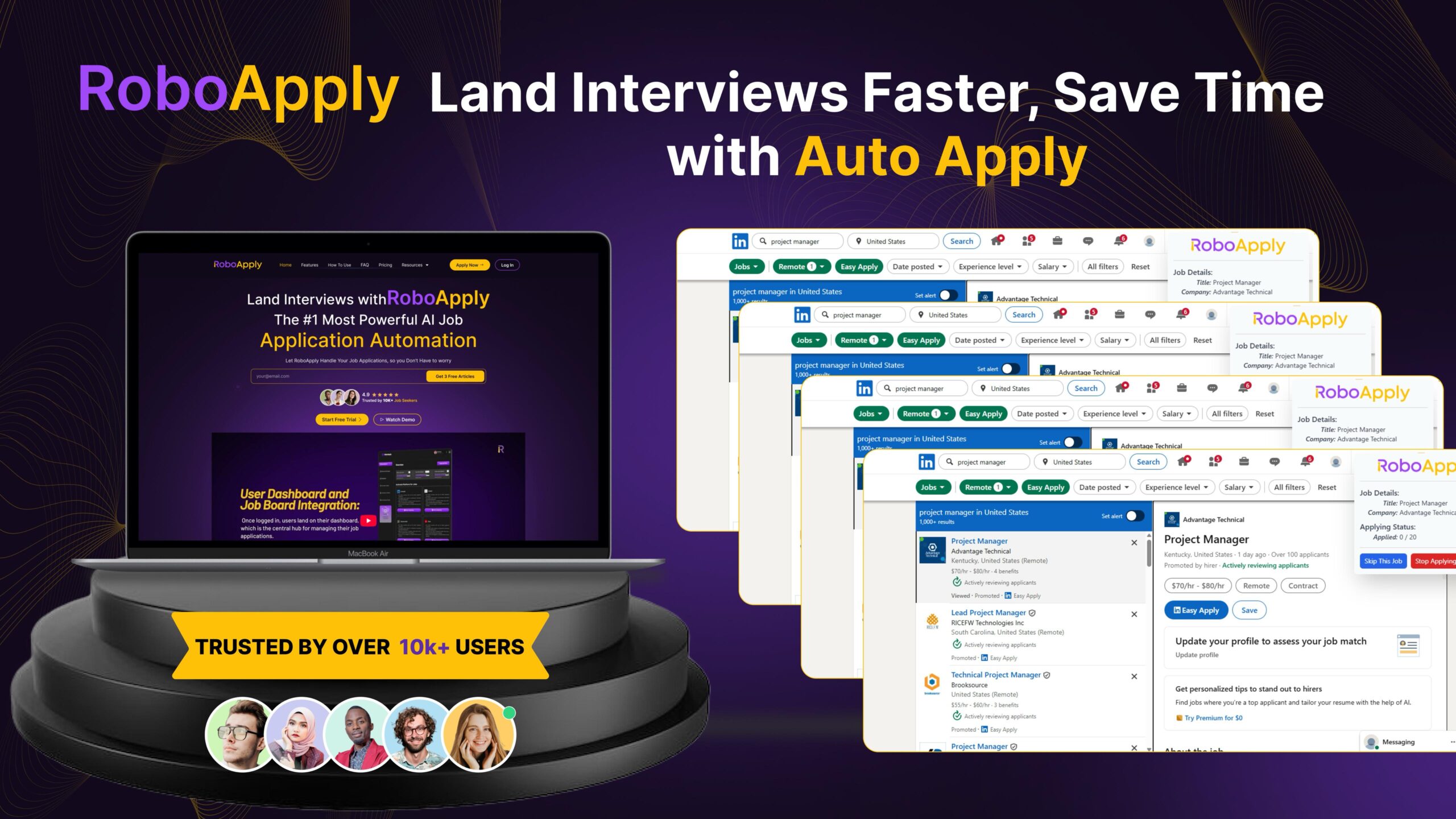
The AI Auto Apply feature submits applications across hundreds of sites using your optimized resume. Your Indeed resume gets leveraged alongside platform-specific versions. You’re not manually downloading and uploading repeatedly.
Interview Copilot prepares you to discuss resume contents confidently. You’ll practice explaining employment history, skills, and achievements clearly. The tool ensures consistency between your written resume and interview responses.
The Analytics dashboard tracks which resume versions generate most interviews. You’ll see what works across different platforms. This data helps you optimize your Indeed resume and downloaded versions strategically.
Frequently Asked Questions
How do i download my resume from indeed to my phone?
Open Indeed app, tap menu, select “Resume,” tap your resume, then tap the download icon. Choose format and save to your phone’s file storage.
Can I download my indeed resume as PDF?
Yes, Indeed offers both PDF and Word format downloads. Choose PDF when downloading for best formatting consistency across all devices and applications.
Where do indeed resume downloads save on my computer?
Downloads save to your browser’s default download folder, typically “Downloads” in your user directory. Check your browser’s download manager for exact location.
Do I need to download my indeed resume to apply elsewhere?
Yes, most company websites and other job boards require uploading your own file. Downloaded Indeed resumes work perfectly for these external applications.
Can employers see my indeed resume without me downloading it?
Employers using Indeed can view your resume directly through their platform. For jobs outside Indeed, you must download and submit your resume manually.