Learning how to add a promotion on LinkedIn takes just minutes. You’ve got two options. First, you can add a new position under your existing company. Second, you can update your current position with your new title. Both methods keep your LinkedIn profile accurate and visible to recruiters.
Your LinkedIn profile serves as your professional storefront. When you get a job promotion, updating it matters. Recruiters search by job titles constantly. An outdated profile means missed opportunities. LinkedIn reports that complete profiles receive 21 times more views than incomplete ones.
Adding your promotion on LinkedIn also announces your achievement to your network. People notice these updates in their feeds. Colleagues congratulate you. Former managers see your growth. This visibility can spark conversations that lead to new opportunities down the road.
Why Updating Your LinkedIn Profile Matters
Your professional network needs to see your current role. Keeping your profile accurate helps in ways you might not expect. Recruiters filter searches by job title and experience level. If your profile shows your old position, you won’t appear in relevant searches.
When you share your promotion, you’re building social proof. Your network sees you’re advancing. This matters more than you think. Research from Jobvite shows 87% of recruiters use LinkedIn to evaluate candidates. Your promotion signals you’re valuable.
Beyond job searching, an updated profile strengthens your professional brand. Colleagues checking your background see accurate information. Clients or partners researching you find current details. This credibility matters in business relationships.
Two Methods for Adding a Promotion
LinkedIn gives you flexibility in how you show career growth. The method you pick depends on how your role changed. Here’s what works best for different situations.
Adding a New Position
This approach creates a separate entry for your new role. It clearly shows progression within the same company. Use this method when your responsibilities shifted significantly. Maybe you moved departments. Or your job role expanded into leadership.
You’ll click “Add profile section” on your LinkedIn profile. Select the experience option. Fill in your new job title and set your promotion date as the start. Your previous role stays listed separately below. This creates a timeline showing growth.
Updating Your Current Position
This method edits your existing entry. It works when your title changed but your core work stayed similar. You’re still in the same department doing related tasks. Just with a higher title or slightly expanded scope.
Click the edit pencil on your current position. Change the job title field to your new title. Update your description to include new responsibilities. Add recent achievements. This keeps everything under one position entry without duplication.

Step-by-Step: How to Add a Promotion on LinkedIn
Here’s the exact process for adding your promotion as a new position. This method clearly displays your career advancement to anyone viewing your profile.
Access Your Profile Page
Log into LinkedIn and go to your profile page. Click your photo in the top right corner. Select “View profile” from the menu. Your full profile displays with all sections visible.
Navigate to Experience Section
Scroll down past your headline and about section. Find the Experience section where your jobs are listed. This is where you’ll add the promotion.
Add Profile Section
Click the “Add profile section” button. A dropdown menu appears with options. Choose “Add position” under the Experience category. A form opens for entering position details.
Fill in Your New Role Details
Enter the required information carefully. Here’s what you need:
- New job title exactly as it appears officially
- Company name (LinkedIn auto-fills if you worked there before)
- Start date matching your promotion date
- Location if it changed
- Employment type like full-time or contract
- Check “I currently work here” if applicable
Write Compelling Job Description
Describe what you do in this new role. Focus on key responsibilities and achievements. Use specific examples when possible. Include industry keywords naturally. Career experts at Harvard Business Review recommend quantifying results whenever you can.
Connect to Previous Role
If adding a new position within the same company, LinkedIn may ask if this is a promotion. Confirm the connection. This links your positions together visually. Viewers see your progression clearly.
Announcing Your Promotion on LinkedIn
After updating your profile, consider posting about your promotion. A thoughtful announcement generates engagement and visibility across your network.
Craft Your Promotion Post
Write something genuine that reflects your personality. Share what excites you about the new challenges ahead. Thank people who supported your growth. Keep it concise and professional without bragging.
You might write: “Thrilled to announce my promotion to Marketing Director at [Company]. Grateful to the team who helped me grow. Looking forward to leading exciting new projects.”
Choose Timing Wisely
Post during weekday mornings for maximum reach. Research from Sprout Social indicates Tuesday through Thursday mornings get highest engagement. Tag relevant people sparingly. Don’t overuse mentions.
Engage With Responses
Reply to comments from people congratulating you. This boosts your post visibility further. Thank specific individuals who contributed to your success. Keep conversations going naturally.
Common Mistakes to Avoid
Many professionals make errors when updating their promotion on LinkedIn. Watch out for these issues that hurt your profile’s effectiveness.
Delaying the Update
Some people wait weeks or months to update their profile. Your LinkedIn should reflect your new role within days. Recruiters might find you through old title searches. You’re missing opportunities meant for your new level.
Writing Vague Descriptions
Saying “responsible for various tasks” helps nobody. Be specific about your new responsibilities. Explain actual projects you handle. Use action verbs that show what you accomplish daily.
Forgetting Other Profile Sections
Your profile headline might still show your old title. Your summary section may need adjustments too. Review all parts of your LinkedIn after adding your promotion. Everything should align with where you are now.
Over-Sharing the News
Posting your promotion once is perfect. Posting about it repeatedly for days comes across wrong. Share the update. Engage with well-wishers. Then return to regular professional content.
Maximizing Your Updated Profile
Getting a promotion opens new doors professionally. LinkedIn is a great way to capitalize on this advancement. Your expanded role gives you access to different conversations and connections.
Join industry groups relevant to your new job position. Participate in discussions there. Share insights from your expanded responsibilities. This builds your reputation at your new level.
Update your skills to match your new role. Add skills your position requires. Endorse colleagues for their abilities. Many return the favor, strengthening your credibility.
Consider writing posts or articles about topics in your new area. Share lessons from your promotion journey. LinkedIn data shows regular posting increases profile visibility significantly.
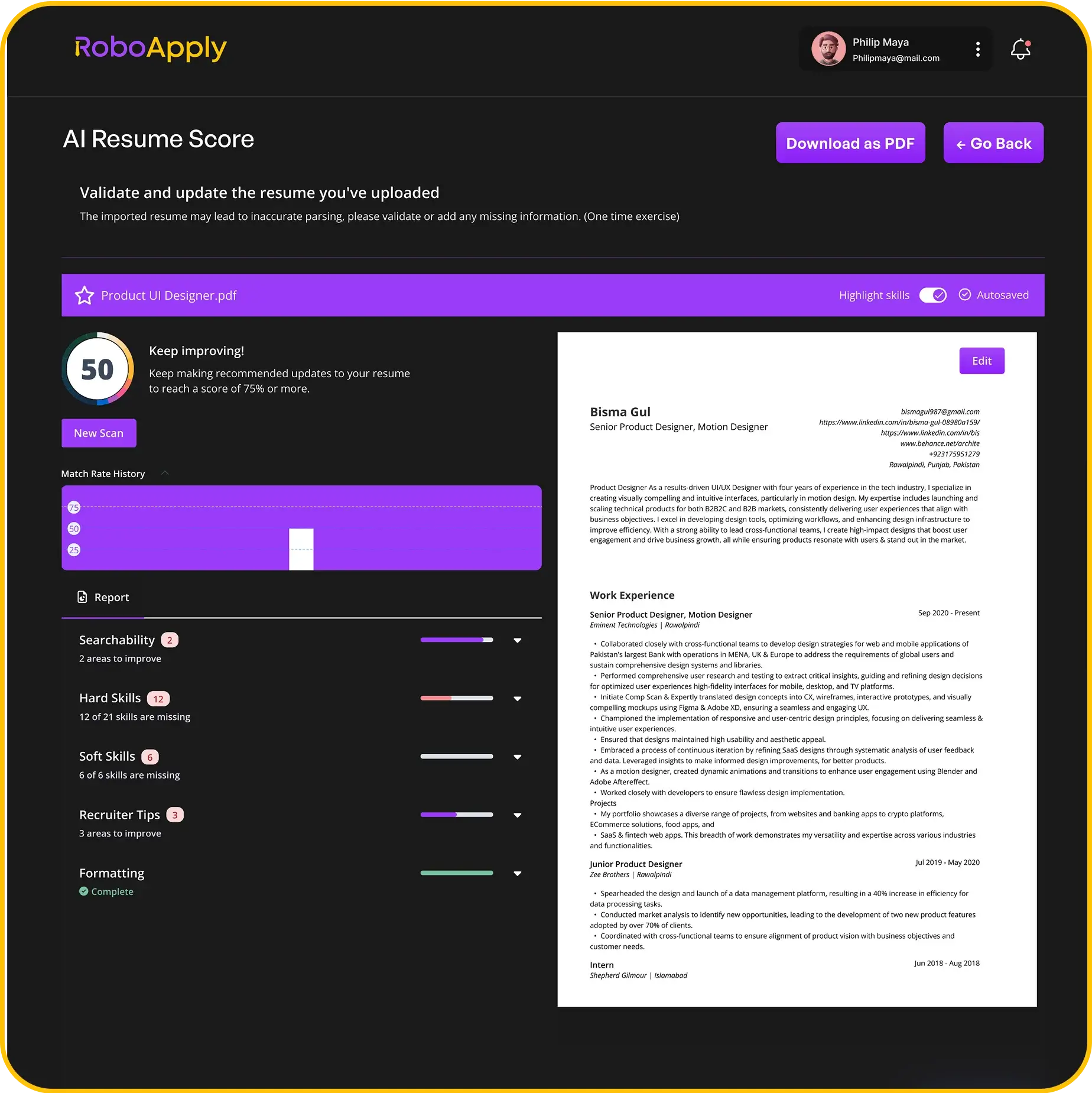
When you’re ready to leverage your promotion for future opportunities, having a strong resume that mirrors your LinkedIn matters. Your career documents need to tell the same story consistently.
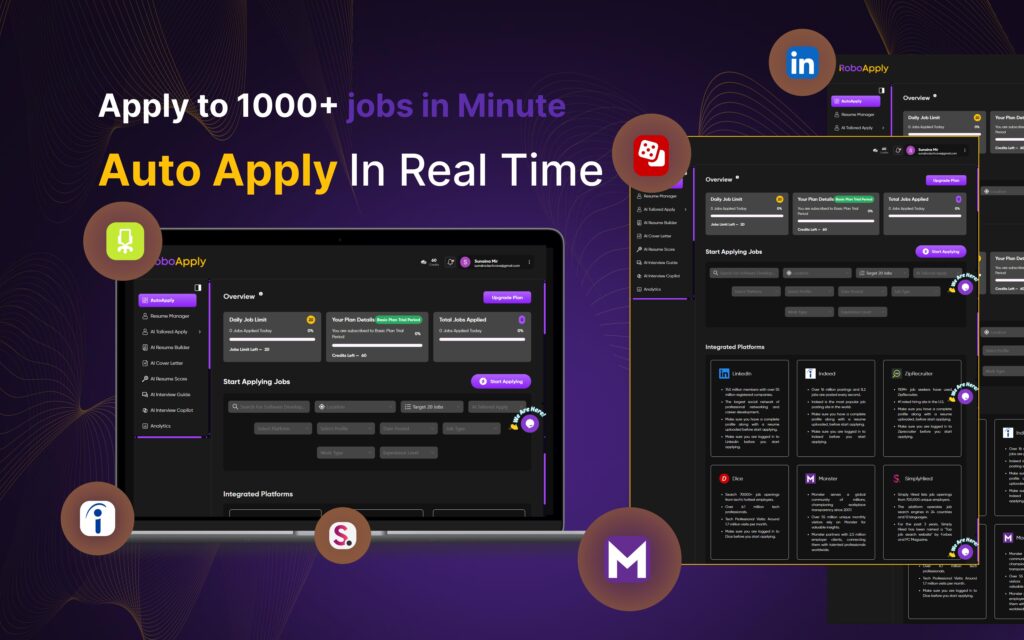
RoboApply’s AI Auto Apply helps you explore positions at your new level efficiently. The platform applies to roles matching your updated title automatically. Your promotion qualifies you for higher-level opportunities you might not have considered.
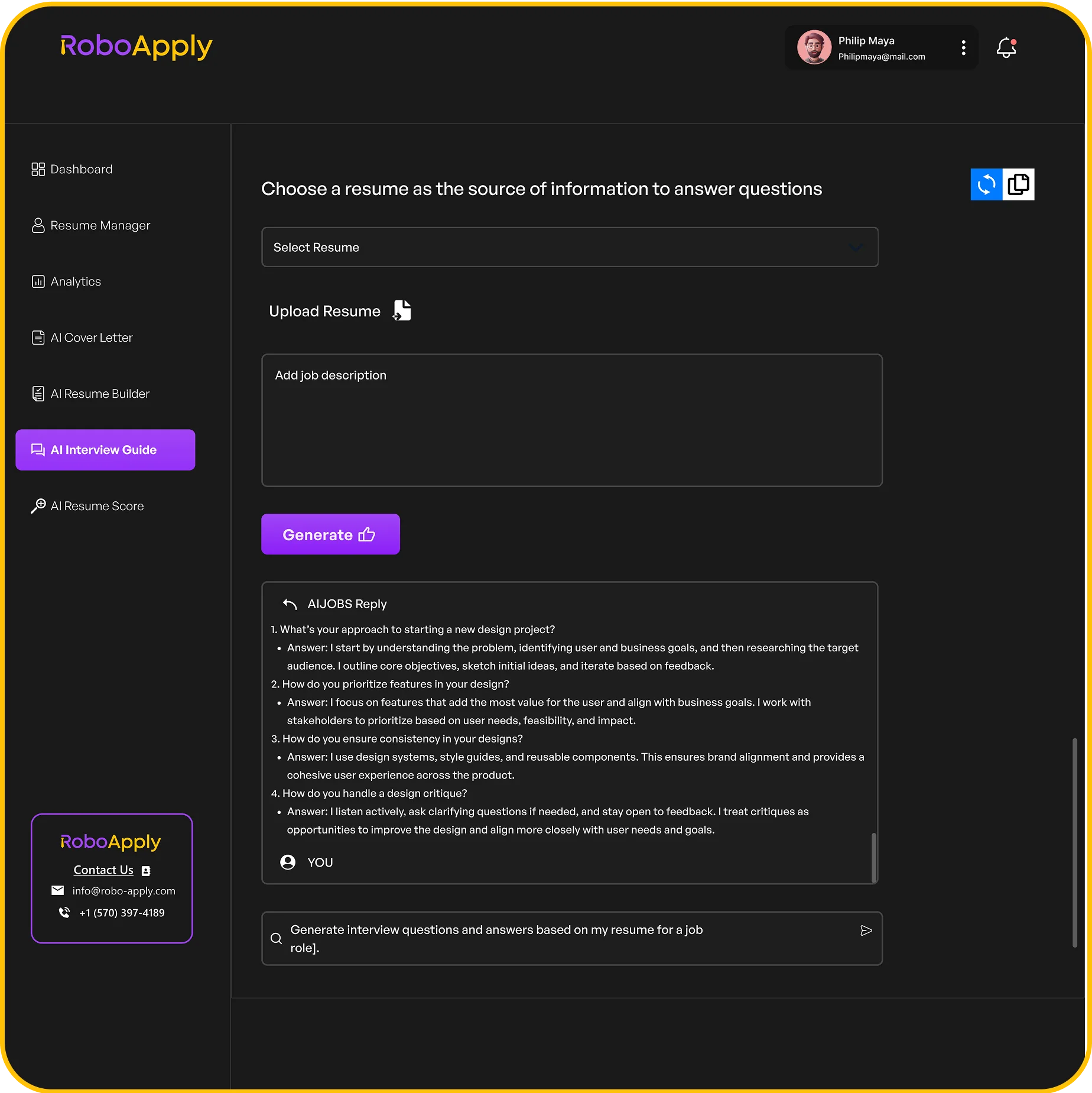
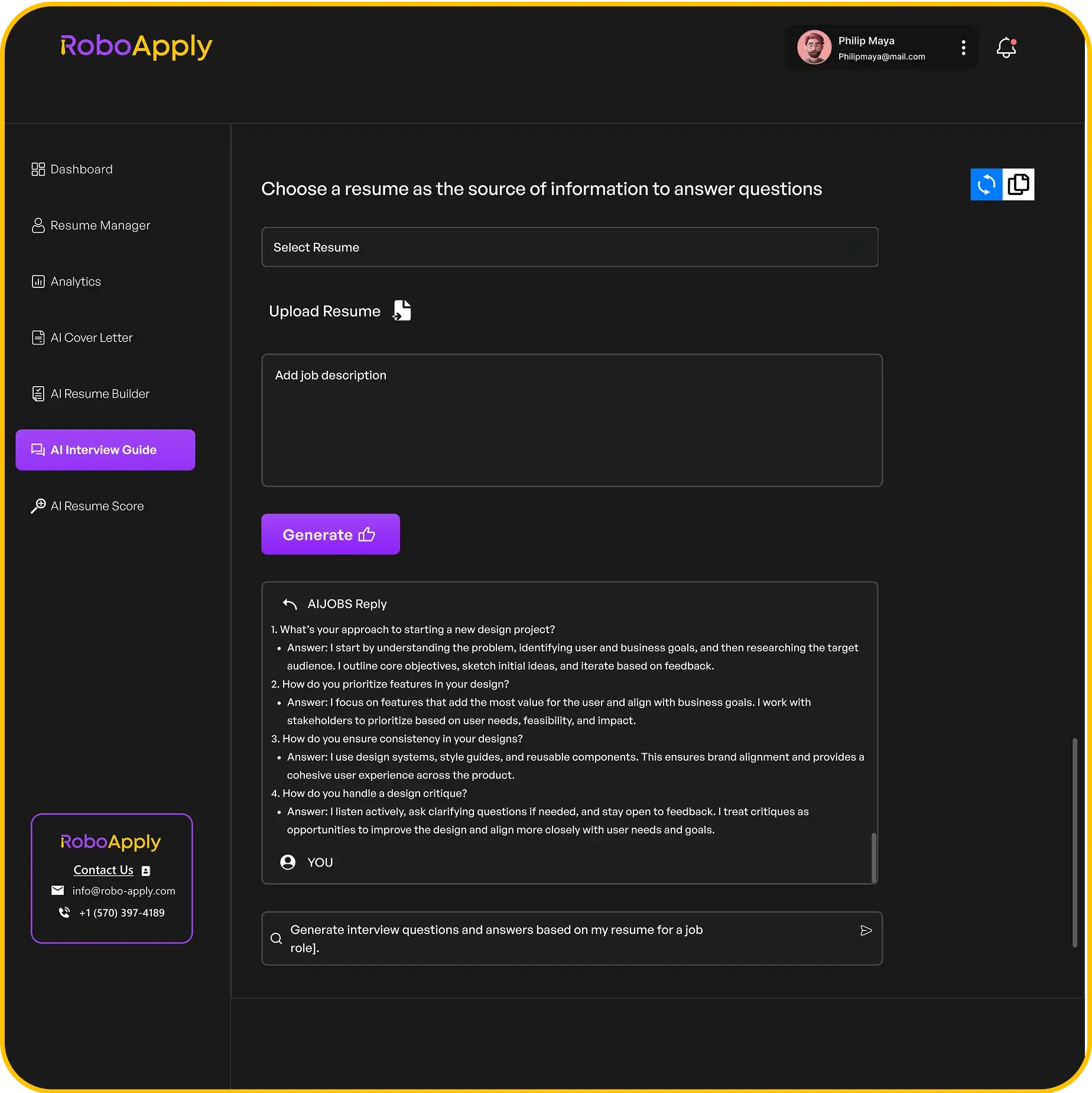
The Interview Copilot feature prepares you to discuss your promotion confidently. You’ll practice explaining how new responsibilities demonstrate leadership. The tool helps connect your career progression to future roles.
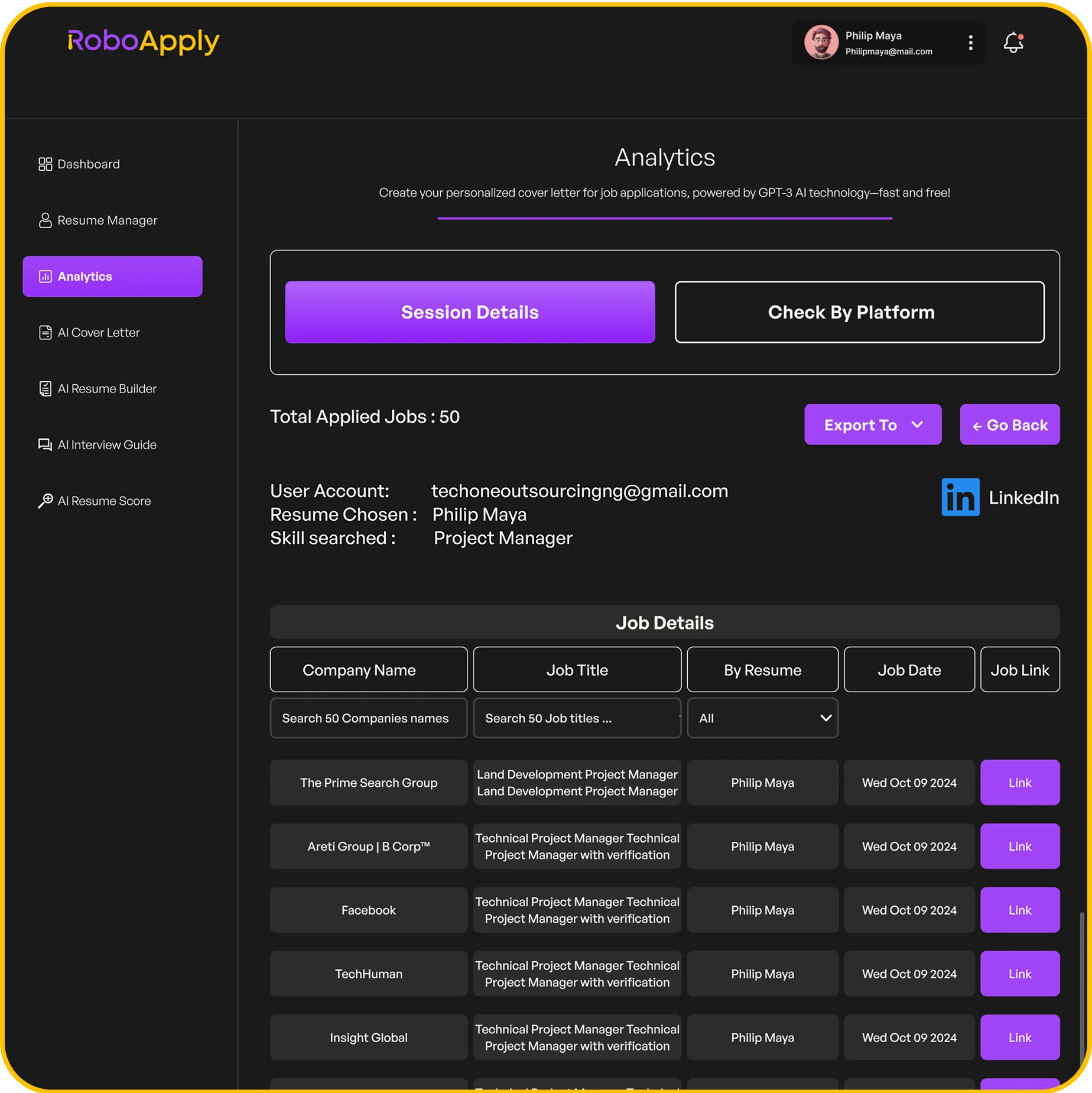
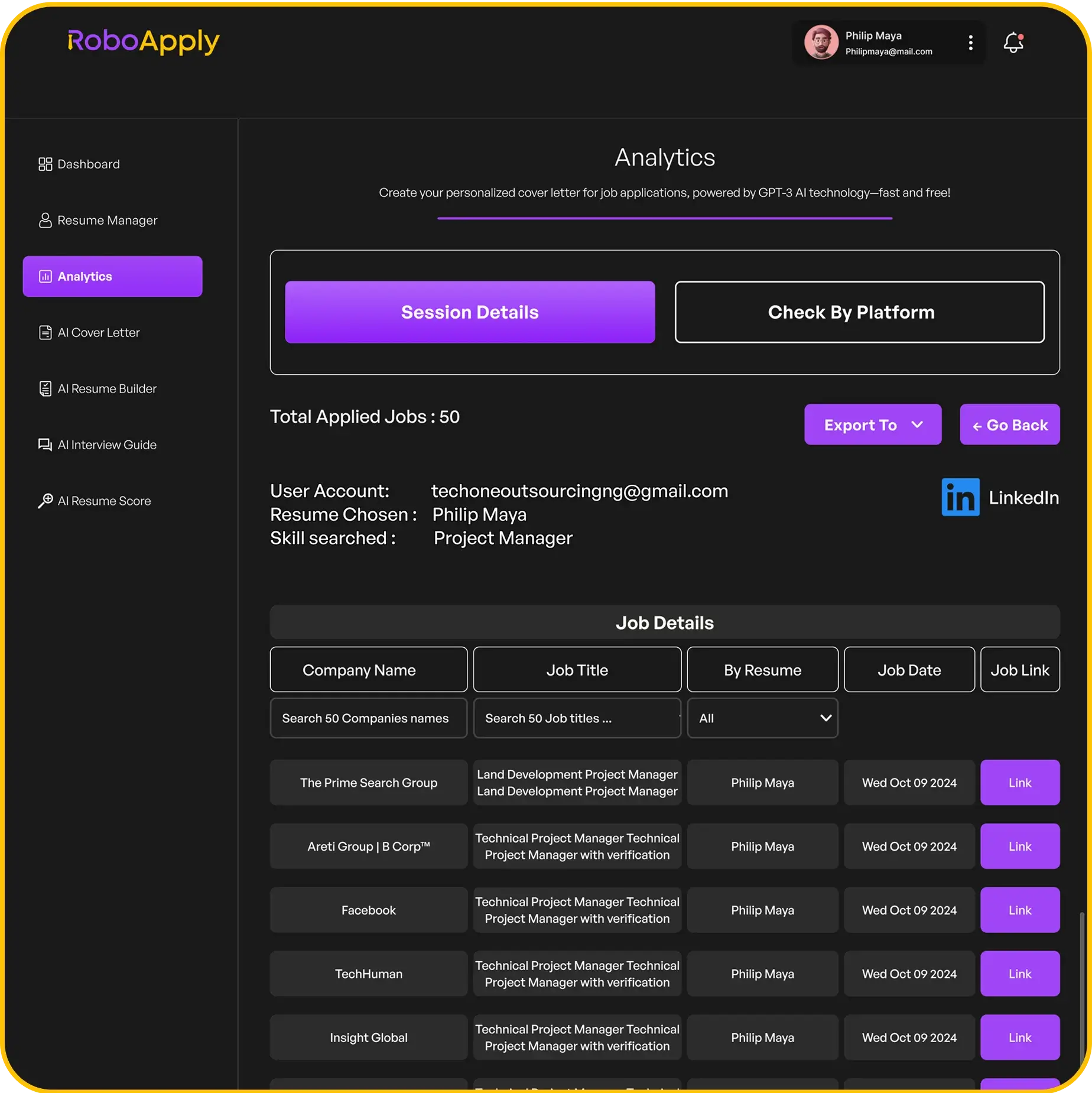
Your promotion update is just the beginning. Analytics tracking shows which positions value your new title most. You’ll see where your advancement creates the biggest advantage in your job search.
Frequently Asked Questions
How do I add a promotion on LinkedIn within the same company?
Add a new position entry with your updated title and promotion date. Keep your previous role listed separately to display clear progression.
Should I post about my promotion publicly on LinkedIn?
Yes, one professional announcement is appropriate. Thank supporters, share excitement about new challenges, then engage with responses from your network.
Can I update my promotion details after posting them?
Yes, click the edit icon on your position anytime. Change responsibilities, add achievements, or update dates as needed to keep information current.
How soon after my promotion should I update my profile?
Update within one week of starting your new role. Quick updates keep your profile accurate for recruiters searching for candidates at your level.
What if my new title doesn’t clearly explain my role?
Use your official title but add context in the description. Explain your actual responsibilities so viewers understand what you do clearly.