Add your promotions to your LinkedIn profile shows career growth clearly. Recruiters want to see upward movement. Hiring managers look for proven advancement. Your promotions tell that story instantly. Yet many professionals skip this crucial step or don’t know how to do it properly.
Getting promotions displayed correctly matters more than you think. Your profile serves as your digital resume. Every promotion demonstrates increasing responsibility. Each advancement proves your value to employers.
This guide walks you through adding promotions to LinkedIn step by step. You’ll learn the exact process that works. We’ll cover common mistakes people make. And you’ll discover how to showcase your career growth effectively.
What LinkedIn Promotions Are and Why They Matter
LinkedIn promotions show your career advancement within the same company. They’re not separate job entries. Instead, they display as multiple positions under one employer. This format highlights your growth trajectory clearly.
The platform recognizes two types of career progression. Internal promotions happen when you move up within your current company. Role changes occur when your responsibilities shift significantly. Both deserve proper documentation on your profile.
Recruiters scan LinkedIn profiles in specific patterns. Research from LinkedIn shows that 87% of recruiters use the platform to evaluate candidates. They look for career progression indicators. Promotions signal ambition, capability, and organizational trust.
Your promotion history communicates several things instantly. You’re valuable enough to promote internally. You handle increasing responsibility well. You grow professionally over time. Companies invest in your development.
Failing to show promotions creates confusion. Recruiters might think you’ve stayed stagnant. Your profile undersells your achievements. That costs you interview opportunities unnecessarily.

Step-by-Step Guide to Add Your Promotions on LinkedIn
Adding promotions requires specific steps. Follow this process exactly to display your career advancement properly.
Step 1: Navigate to Your Experience Section
Log into your LinkedIn account first. Click on your profile picture in the top right corner. Select “View profile” from the dropdown menu. Scroll down to your Experience section.
Find the company where you received your promotion. Click the pencil icon next to that position. This opens the editing interface.
Step 2: Access the Promotion Feature
Inside the edit window, look carefully at the options. You’ll see a checkbox or link that says “Update this position” or “I’ve been promoted.” The exact wording varies slightly.
Click this option to access promotion functionality. LinkedIn recognizes this triggers a position update. You’re creating a progression timeline now.
Step 3: Enter Your Previous Title Details
LinkedIn prompts you for your previous position information. Enter your old job title exactly as it appeared. Use the official title from your company records.
Add the start date for that previous position. Include the month and year when you began. Then enter the end date showing when you got promoted.
Write a description of your previous role responsibilities. Focus on achievements and quantifiable results. Harvard Business Review research emphasizes that specific metrics outperform vague descriptions by 40%.
Step 4: Add Your Current Promoted Position
After saving the previous position, add your current role. Enter your new job title accurately. Include the promotion date as your start date. Leave the end date blank if you’re still in this role.
Describe your expanded responsibilities clearly. Highlight new skills you’re using. Mention larger teams you manage. Show the progression from your previous role.
Include achievements from your promoted position. Use numbers wherever possible. TopResume data shows that quantified achievements increase profile engagement by 3x.
Step 5: Verify the Display Format
Save your changes and view your profile. LinkedIn should display both positions under one company header. Your current title appears first. Your previous title shows beneath it.
Check that everything looks correct. The progression should be obvious. If something looks wrong, edit again until it displays properly.
Common Mistakes When Adding Promotions
Many professionals make errors that diminish their promotion’s impact. Avoid these common problems.
Creating Separate Company Entries
The biggest mistake is listing each position as a separate company. You worked for the same employer throughout. Splitting them suggests you left and returned.
Keep all positions under one company header. This shows continuous employment and internal growth. LinkedIn’s own research confirms that 69% of hiring managers value internal advancement highly.
Using Vague Achievement Descriptions
Generic descriptions waste valuable space. “Responsible for sales” tells recruiters nothing. “Increased regional sales by 34% over 18 months” demonstrates real impact clearly.
Every bullet point should showcase specific achievements. Include metrics that prove your success. Numbers make your accomplishments tangible and memorable.
Forgetting to Update All Positions
Some people add their promoted position but forget to edit their previous one. This creates timeline gaps. Update both your previous and current roles. Ensure dates connect seamlessly.
Neglecting Skills and Endorsements
Promotions often involve new skills. Add new skills relevant to your promoted position. Request endorsements from colleagues. Updated skills improve your searchability significantly.
Best Practices for Showcasing Career Growth
Beyond the technical steps, strategic approaches maximize your promotion’s visibility.
Announce Your Promotion Publicly
Create a LinkedIn post announcing your promotion. Share your excitement professionally. Thank your team and leadership.
Public announcements increase visibility dramatically. Forbes research from 2023 found that professionals who announce promotions receive 5x more recruiter messages.
Request Recommendations
Ask your manager for a LinkedIn recommendation. Request one from colleagues you’ve mentored. Recommendations validate your promotion’s legitimacy. Strong recommendations dramatically increase profile credibility.
Update Your Headline and Summary
Your LinkedIn headline should reflect your current promoted title. Don’t leave outdated information there. Revise your summary section too. Explain how you’ve grown professionally. Highlight the increasing responsibility you’ve earned.
Maintain Consistency Across Platforms
Your resume should match your LinkedIn profile. Dates need to align perfectly. When you update LinkedIn, update your resume simultaneously. This consistency demonstrates attention to detail.
How RoboApply Leverages Your LinkedIn Profile
After optimizing your LinkedIn profile with promotions, you need those achievements working for you. That’s where comprehensive job search automation makes the difference.
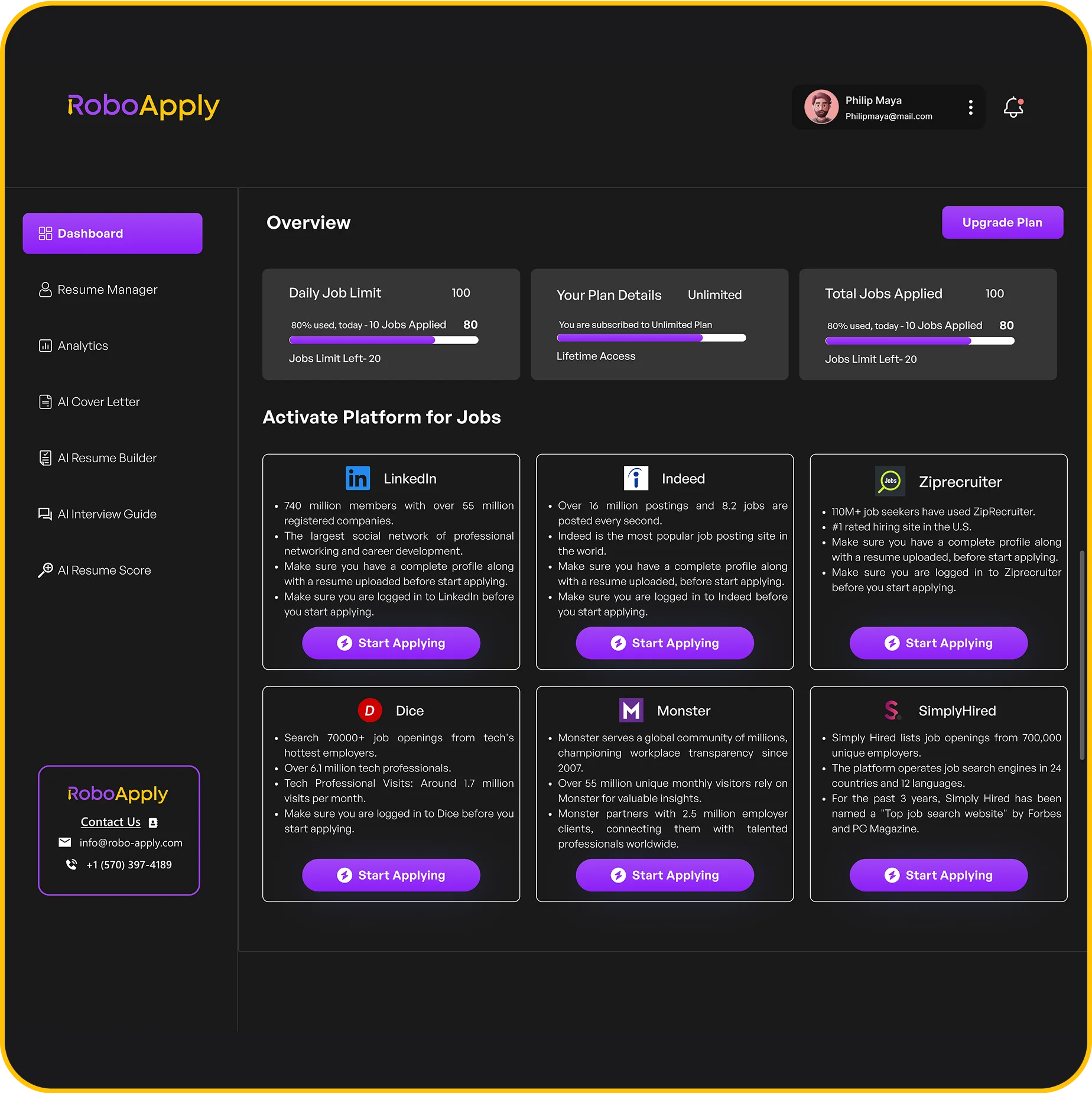
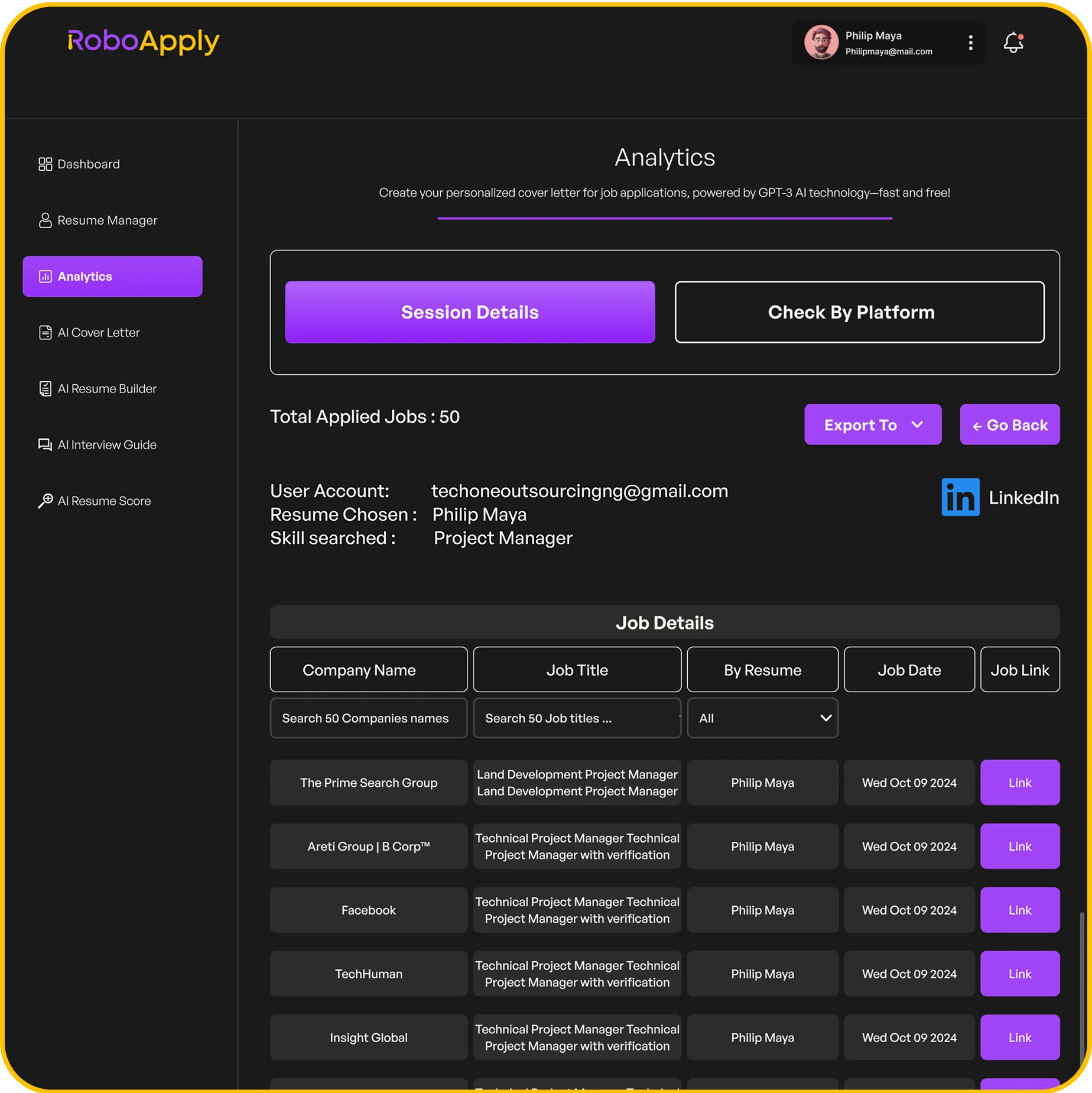
RoboApply connects directly to your LinkedIn profile and other professional platforms. The system uses your documented career progression strategically. Your promotions become powerful selling points in automated applications.
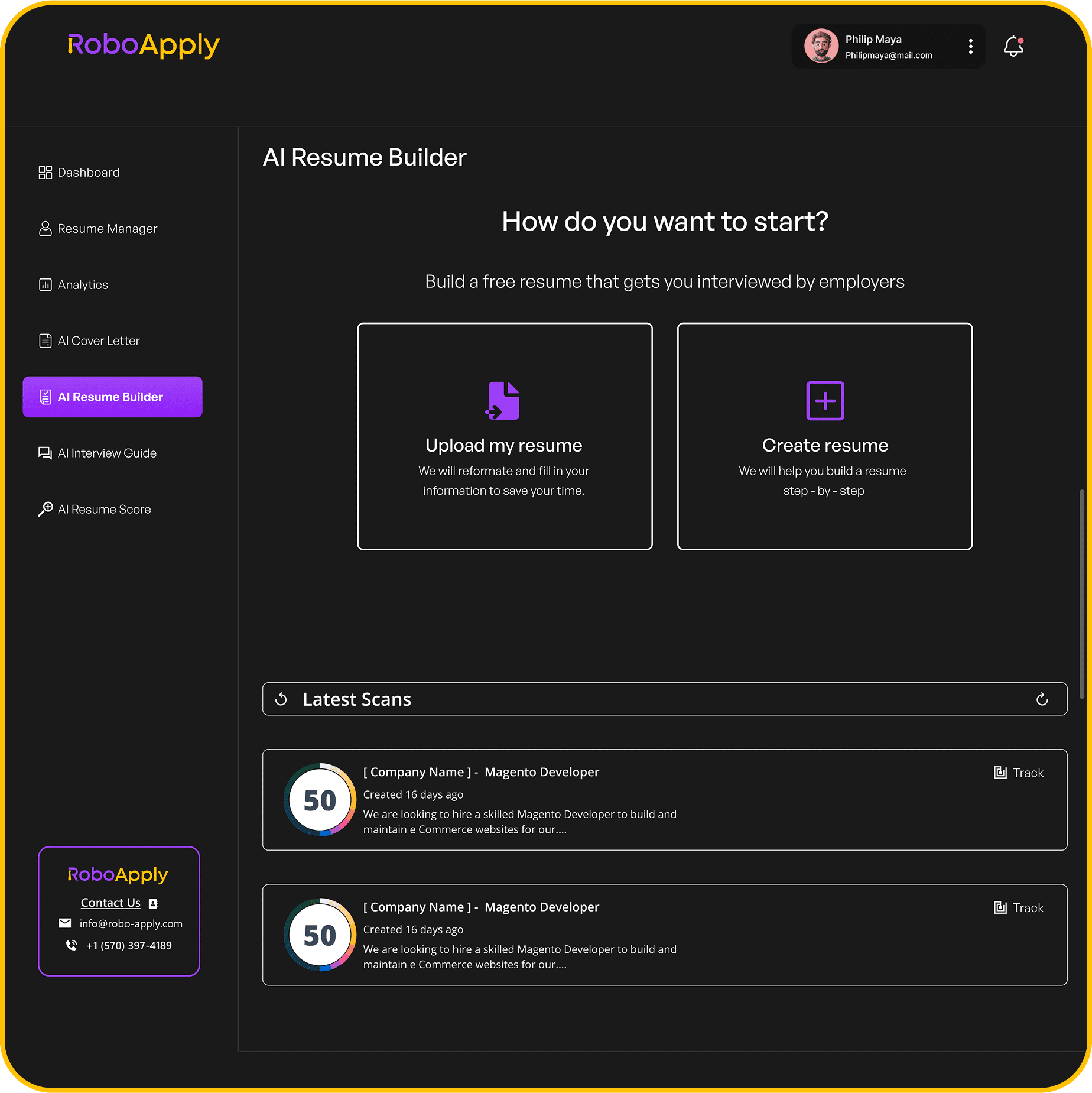
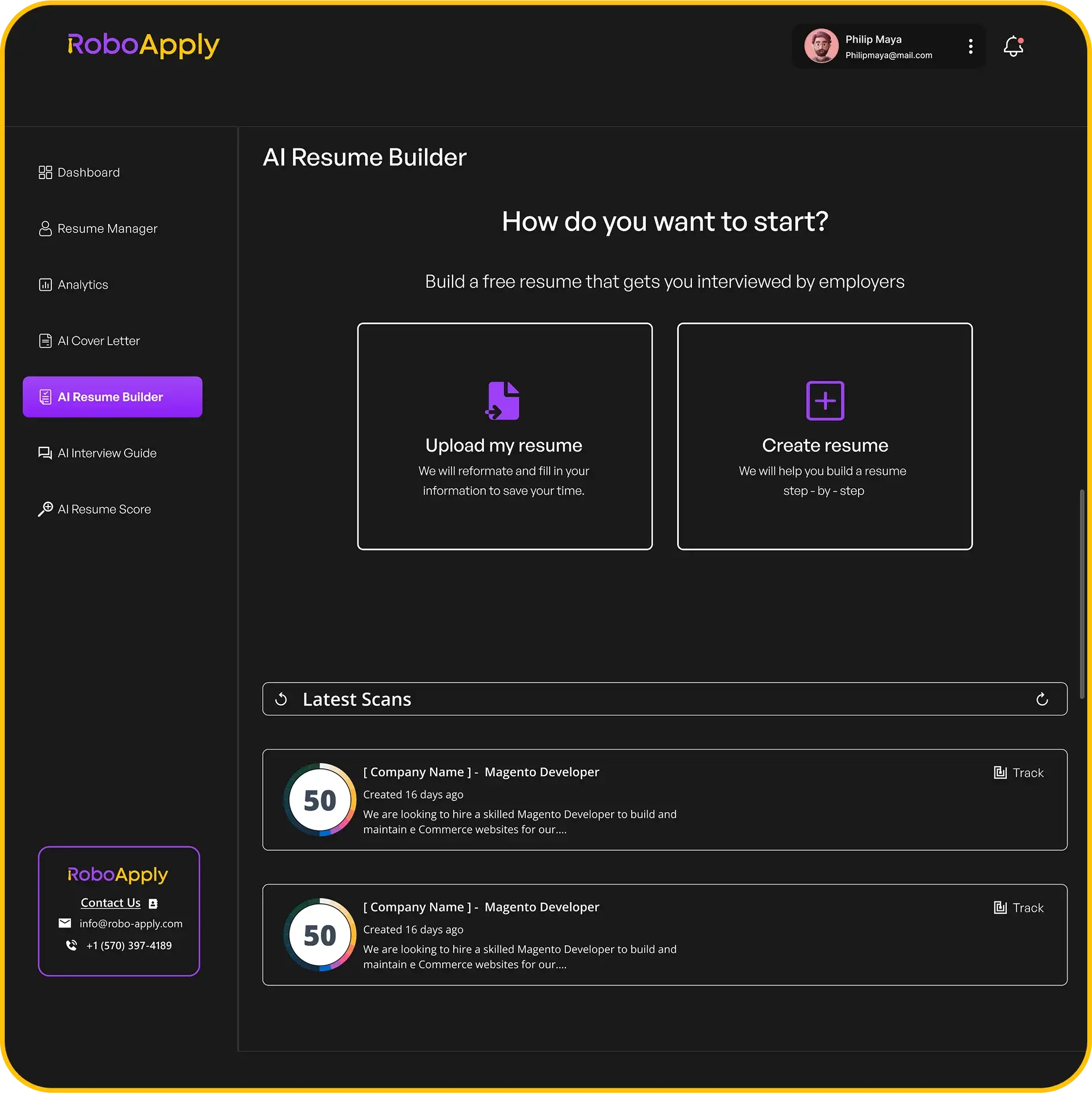
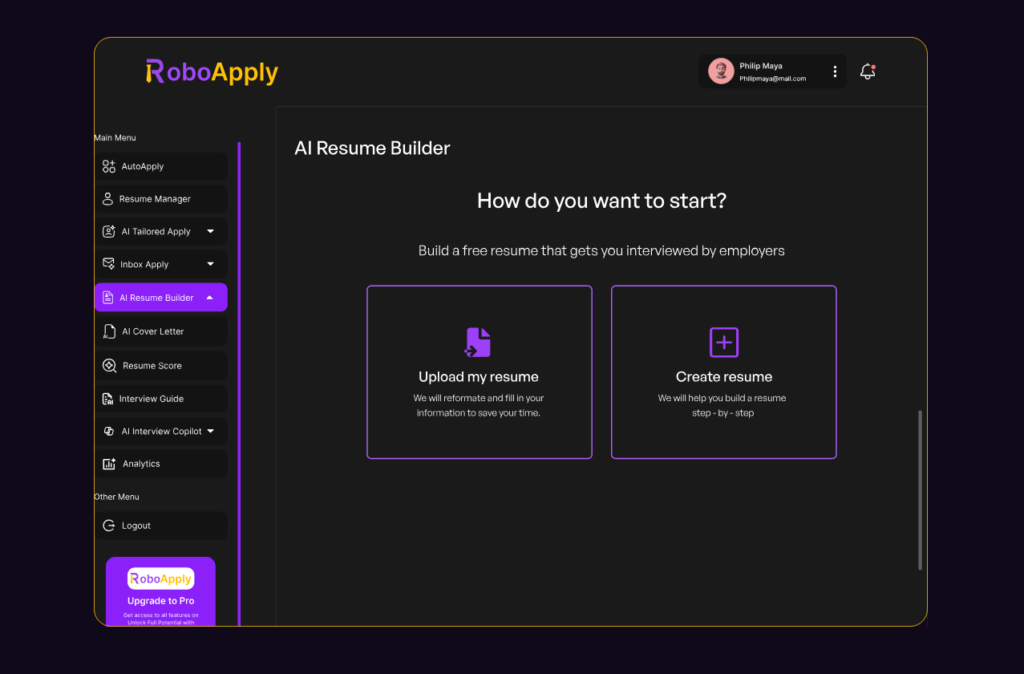
The AI Resume Builder pulls information from your LinkedIn profile. It recognizes your promotion history automatically. Then it frames that career growth for maximum impact.
When you use AI Tailored Apply, the system customizes your experience for each position. Your promotions get emphasized differently based on job requirements. Leadership roles highlight your management progression. Technical positions showcase your skill advancement.
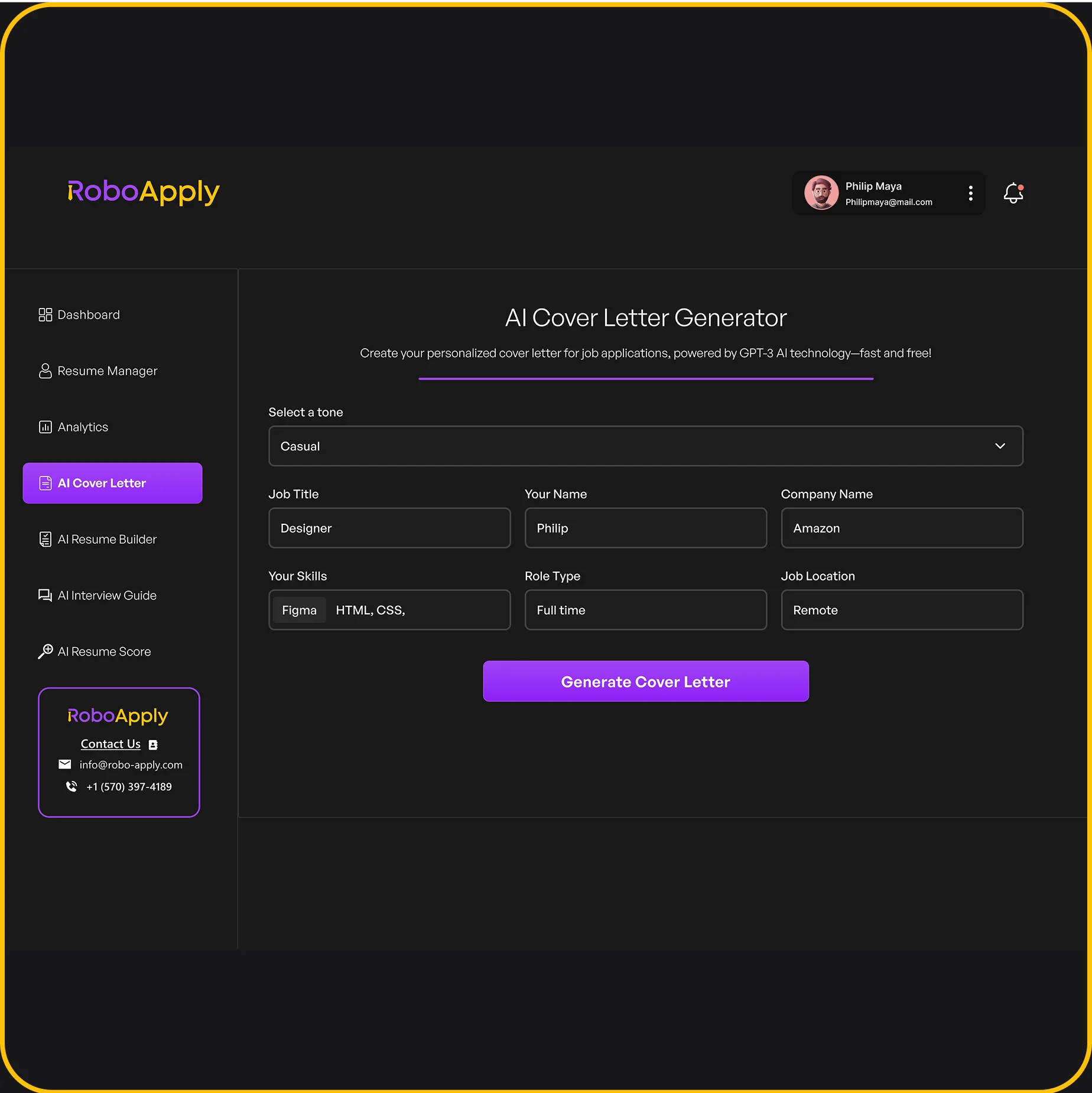
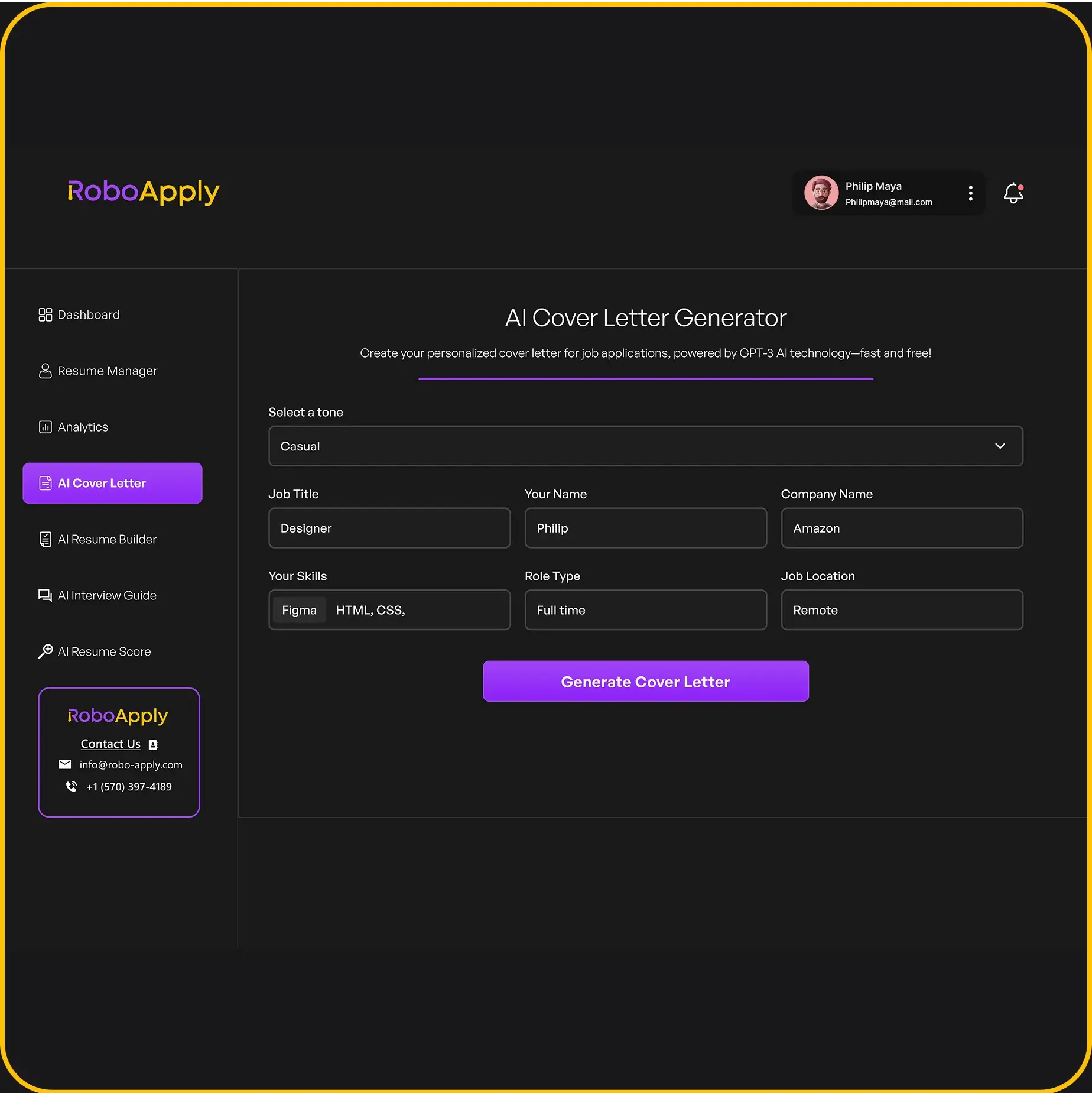
The AI Cover Letter generator references your promotion history strategically. It connects your career growth to the position you’re applying for. Your advancement story becomes compelling narrative.
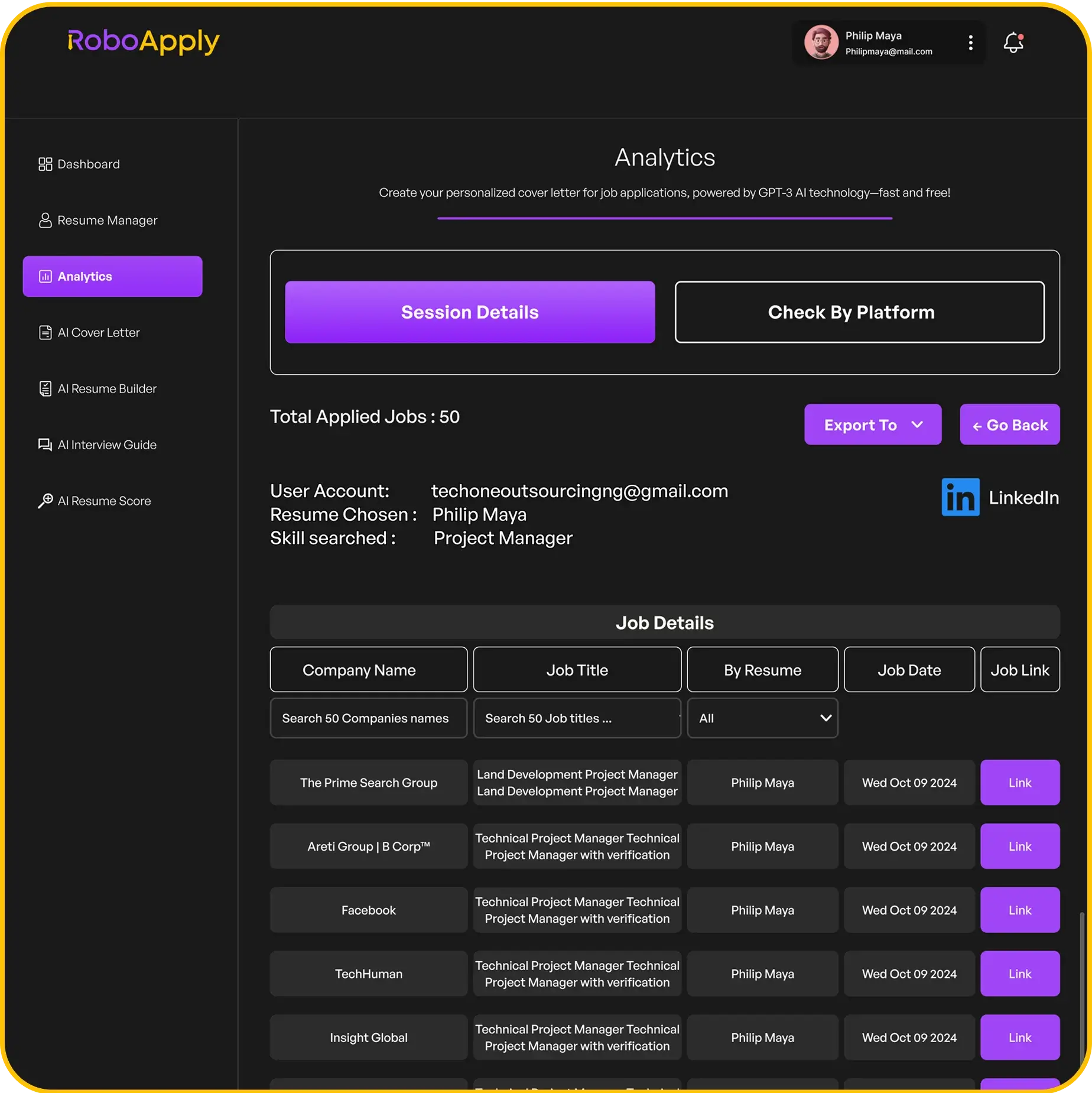
AI Auto Apply submits applications across major job boards continuously. Your optimized LinkedIn profile and promotion history work 24/7. The Analytics feature tracks which applications generate interviews.
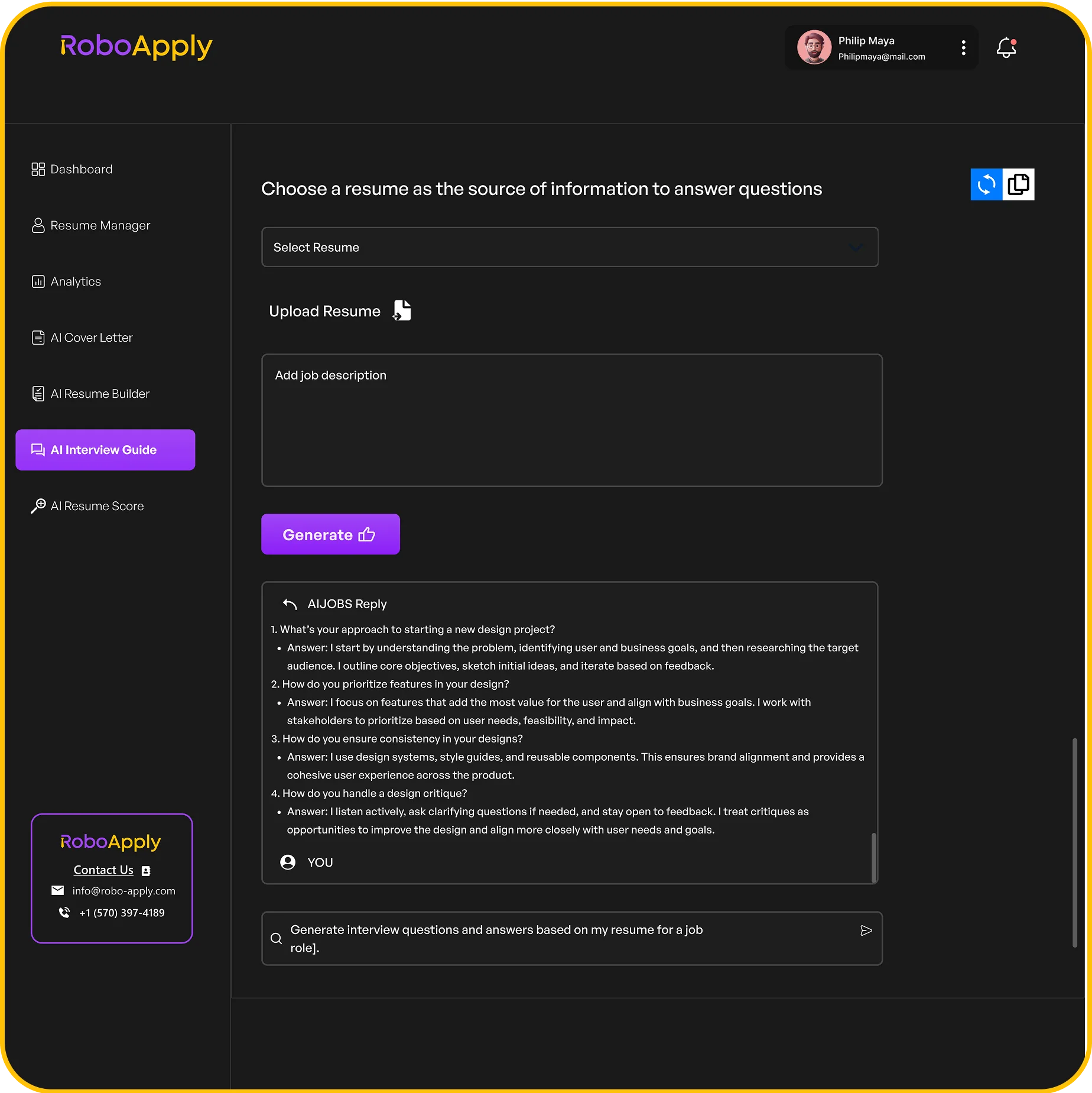
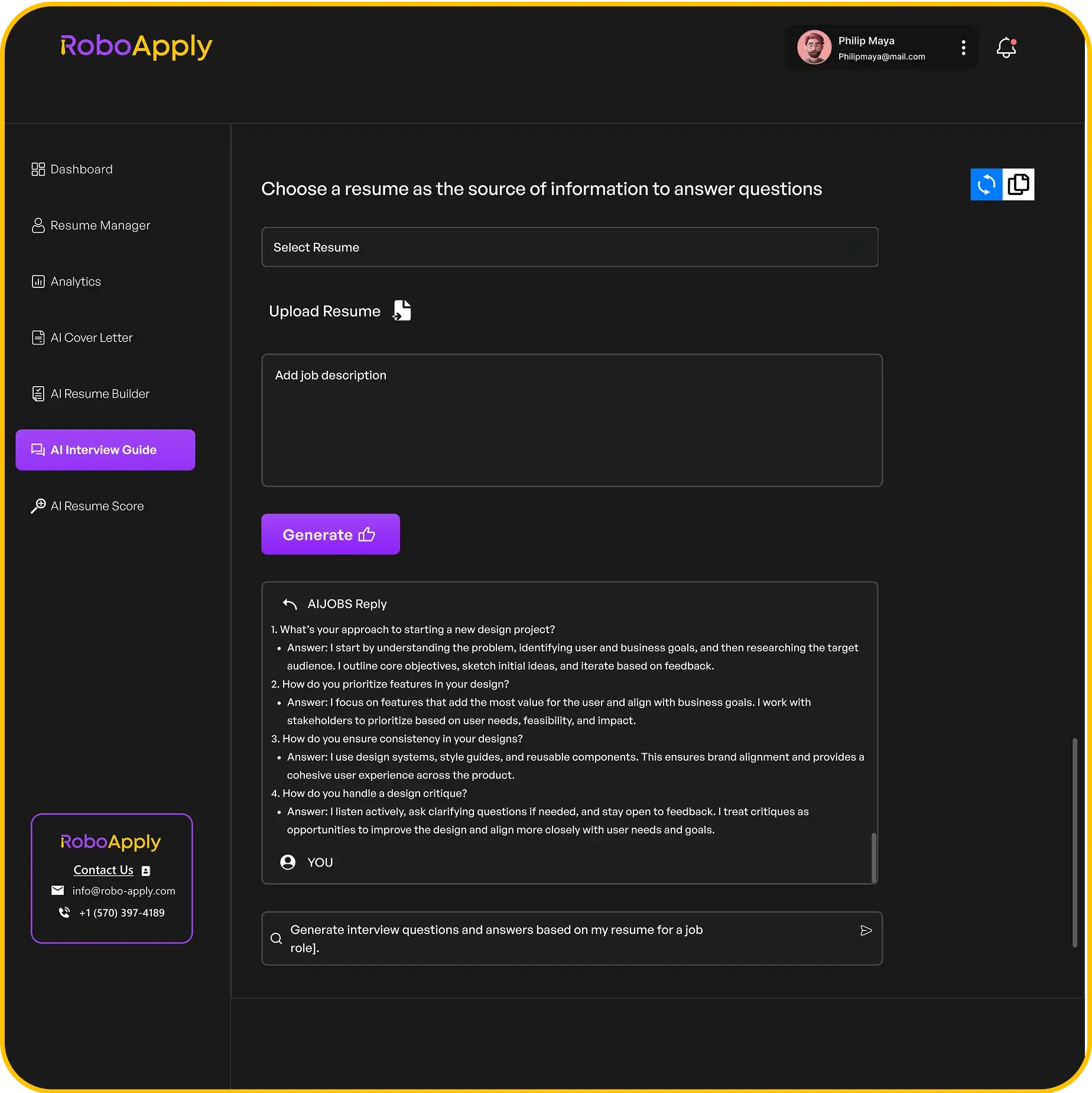
The AI Interview Copilot prepares you to discuss your promotions effectively. It generates questions about your career advancement. You practice explaining your growth trajectory.
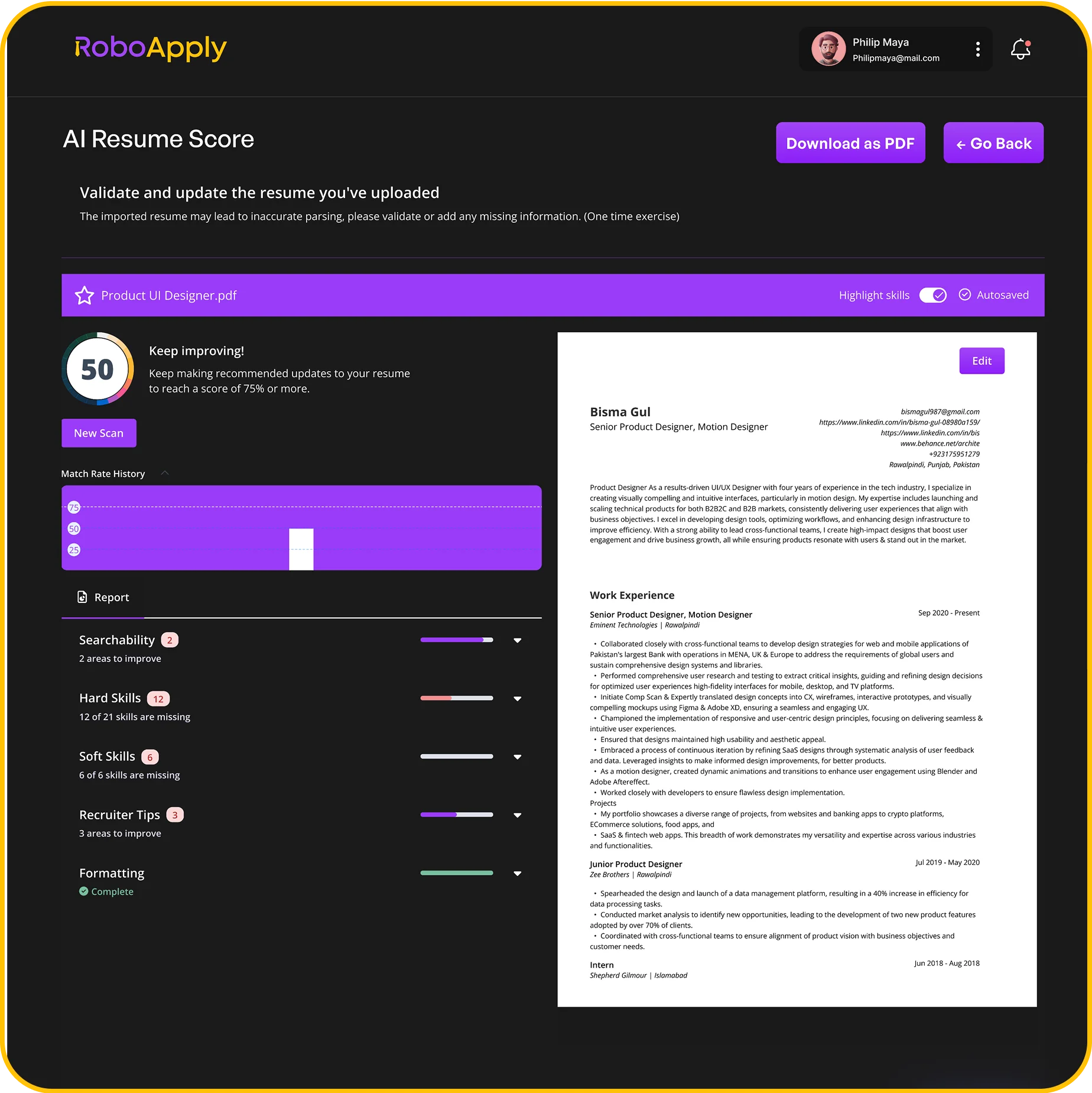
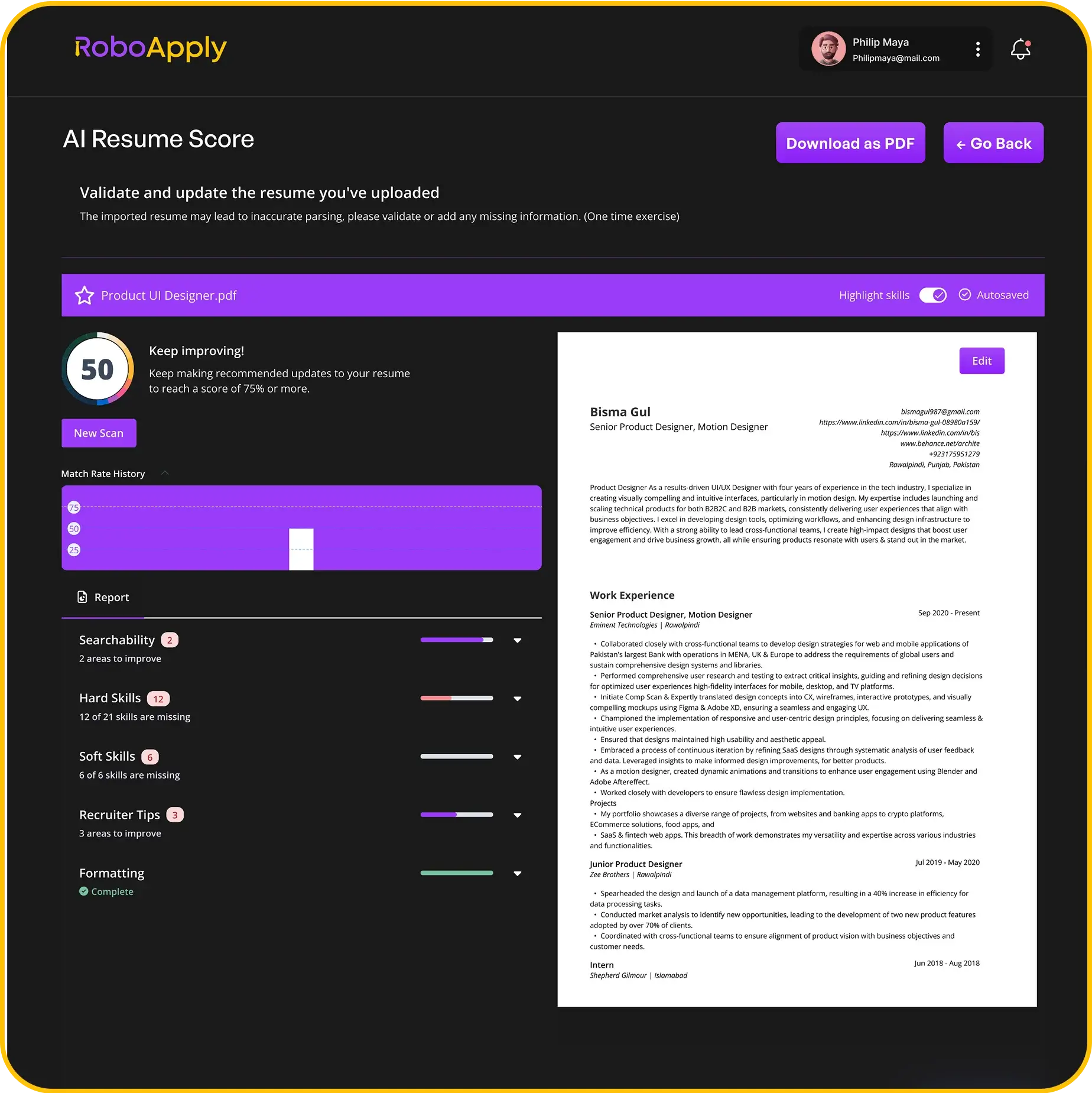
Quality automation leverages your LinkedIn optimizations at scale. Your promotions don’t just sit on your profile. They actively work to generate interview opportunities. The Resume Score feature ensures your career progression gets maximum visibility.
Pricing scales based on your needs. Start with the free plan to test everything. Three free resumes and applications let you experience full functionality. The 90-day money-back guarantee eliminates risk entirely.
Taking Action on Your Career Growth
Your promotions represent hard-earned achievements. LinkedIn provides the platform to showcase this growth. But you need to use that platform correctly.
Follow the steps outlined here exactly. Add every promotion you’ve received. Update all positions under each employer. Verify everything displays correctly.
Don’t stop at updating your profile. Announce your promotions publicly. Request recommendations that validate your advancement. Keep all professional platforms synchronized.
Then put that optimized profile to work. Automated systems leverage your achievements at scale. Your promotion history becomes a continuous interview generator.
Your next career advancement starts with properly showcasing your last one. Update your LinkedIn profile today.
Frequently Asked Questions
How do I add multiple promotions at the same company on LinkedIn?
Add each promotion as a separate position under the same company header. Use the “Update this position” feature for each advancement to maintain clear timeline progression.
Should I list every title change or only major promotions?
List significant promotions involving substantially different responsibilities or seniority levels. Minor title adjustments without meaningful change in duties don’t require separate entries.
Can I add promotions from previous employers to LinkedIn?
Yes, add all career promotions regardless of when they occurred. Past advancement demonstrates consistent career growth throughout your professional history across all employers.
What if my promotion didn’t come with a title change?
Document the increased responsibility by updating your position description. Add new skills, expanded duties, and quantified achievements that reflect your elevated role and contributions.
How soon should I update LinkedIn after getting promoted?
Update your LinkedIn profile within one week of your official promotion date. Timely updates ensure your profile remains current and maximizes visibility to recruiters searching for candidates.