How to message employer on indeed? Click the “Messages” icon in the top right of your Indeed account. Select “New Message,” search for the employer’s company name, write your professional message, and click “Send.” You can only message employers who’ve enabled messaging or after they contact you first. The process takes under two minutes.
Messaging employers directly increases your chances of standing out. You’re not just another application in their queue. You’re a proactive candidate who took initiative. That matters to hiring managers evaluating dozens of identical resumes.
Research from Indeed shows candidates who message employers get 30% more responses. Direct communication proves you’re genuinely interested. It demonstrates professional communication skills. These qualities separate you from passive applicants.
Why Indeed Messaging Works
Direct employer communication on Indeed creates opportunities traditional applications don’t. You’re bypassing automated systems and reaching real decision-makers. This approach changes how employers perceive your candidacy.
Standing Out From Other Applicants
Most candidates submit applications and wait. They never follow up. They don’t ask questions. They let their resume speak alone. This passive approach rarely works.
Active candidates message employers for several strategic reasons:
- You demonstrate genuine interest beyond clicking “Apply”
- You show initiative and professional communication skills
- You create personal connection before interviews
- You clarify job requirements and expectations directly
- You keep your name top of mind during decision making
Employers remember candidates who engage professionally. You’re not just application #47. You’re the person who asked thoughtful questions. That memorability matters when they’re choosing who to interview.
Building Rapport Before Interviews
Messaging creates relationship foundations before you meet. You’re not a stranger walking into their office. You’re someone they’ve already communicated with professionally.
This familiarity reduces interview anxiety for both parties. Conversations flow more naturally. You’ve already established professional rapport. Understanding career opportunities helps you target messages strategically.
Finding the Indeed Messaging Feature
Indeed’s messaging system location varies between desktop and mobile. Knowing where to look saves frustration. The feature isn’t always immediately visible to new users.
Desktop Messaging Access
Start at Indeed’s homepage while logged into your account. Look for the messages icon in the top right corner. It appears as a speech bubble or envelope symbol next to your profile picture.
Click the messages icon. This opens your message inbox. You’ll see previous employer conversations if any exist. Click “New Message” or “Compose” to start fresh communication.
Type the company name in the recipient field. Indeed auto-suggests matching employers. Select the correct company from suggestions. Not all employers have messaging enabled. You’ll see this limitation immediately if they don’t accept messages.
Mobile App Messaging Process
Open the Indeed app on your phone. Tap the menu icon (three horizontal lines) in the top left corner. Scroll down to find “Messages” in the menu options.
Tap “Messages” to access your inbox. Tap the compose icon (usually a pencil or plus sign) to create new messages. Search for the employer’s company name.
Select the employer from search results. The compose screen appears. Write your message using your phone’s keyboard. Review carefully before sending. Mobile typing creates more errors. Double-check everything.
When Messaging Isn’t Available
Not all employers enable Indeed messaging. Larger companies often disable it. They prefer candidates use formal application processes exclusively.
If messaging isn’t available, you have alternatives:
- Use the company’s career page contact form
- Find the hiring manager on LinkedIn
- Call the company’s main number requesting HR
- Visit in person for local positions
- Email contacts listed in job postings
Don’t let disabled messaging stop your follow-up. Find other professional communication channels. Similar to following up strategically, persistence matters.
Crafting Your Indeed Employer Message
Structure your message for maximum impact. Every sentence should serve a purpose. Brevity and clarity beat lengthy explanations every time.
Subject Line Best Practices
Your subject line determines whether employers open your message. Make it specific and professional. Include your purpose and the position title.
Effective subject line formats:
- “Question About [Position Title] – [Your Name]”
- “Following Up on [Position Title] Application”
- “Inquiry Regarding [Position Title] Requirements”
- “Thank You for Considering My Application – [Position]”
- “[Position Title] Candidate – Quick Question”
Avoid vague subject lines like “Hi” or “Question” or “Following Up.” These could be about anything. They don’t communicate value. Busy hiring managers skip them.
Message Body Structure
Start with a professional greeting. Address the recipient by name if possible. State your purpose in the first sentence. Get to your point immediately.
Your opening should cover:
- The position you’re interested in or applied for
- Where you found the job listing
- Your primary reason for messaging
- Brief context about your background
Example: “I applied for the Marketing Coordinator position yesterday. I have three years of social media management experience. I’m messaging to ask about your preferred start date.”
Keep your middle paragraph focused. Ask one clear question or make one specific point. Don’t overload with multiple topics. That confuses conversations and delays responses.
Close professionally. Thank them for their time. Include your contact information. Make next steps clear.
Professional Tone Maintenance
Indeed messages are business correspondence. Maintain professional tone throughout. Avoid casual language, emojis, or text abbreviations. Understanding professional standards applies across all communications.
Write as you would to a colleague you respect. Be polite without being overly formal. Use proper grammar and punctuation. Proofread before sending. Mistakes hurt your credibility significantly.

What to Say in Different Messaging Scenarios
Different situations require different message approaches. Customize your communication based on your specific goal. Generic messages rarely achieve intended results.
Following Up After Applying
Wait 3-5 business days after applying before following up. This timing shows interest without seeming impatient. Your message should be brief and purposeful.
Effective follow-up messages include these elements:
- Confirmation you submitted your application on [specific date]
- Reiteration of your interest in the position
- One key qualification matching their requirements
- Question about their timeline for next steps
- Appreciation for their consideration
Example: “I submitted my application for the Data Analyst position on Monday. My five years with SQL and Tableau match your technical requirements perfectly. Could you share your expected timeline for interviews?”
Keep follow-ups under 100 words. Longer messages seem pushy. You’re checking in, not reselling yourself.
Asking About Job Requirements
Sometimes job postings lack clarity. Messaging lets you clarify requirements before applying. This shows thoughtfulness and helps you target applications better.
Ask about:
- Specific software or tools required
- Expected start date or flexibility
- Remote work options if not mentioned
- Team structure and reporting relationships
- Typical projects or responsibilities
Frame questions positively. Don’t focus on what you lack. Ask how the role operates. Show you’re evaluating fit carefully.
Requesting Interview Logistics
After receiving interview invitations, messages help you prepare properly. Don’t guess about logistics. Clarify details professionally.
Appropriate interview questions include:
- Interview format (phone, video, in-person)
- Expected duration and number of interviewers
- Parking or building access information
- Materials to bring or prepare
- Dress code expectations
These practical questions demonstrate preparedness. They show you take interviews seriously. Understanding formatting expectations helps across professional communications.
Common Indeed Messaging Mistakes
Certain errors damage your candidacy through messages. Avoid these problems to maintain professional impression. Small mistakes create big consequences.
Sending Generic Copy-Paste Messages
Employers recognize templated messages instantly. They see dozens daily. Generic content suggests you’re mass-applying without real interest.
Customize every message. Reference:
- The specific position title exactly as listed
- Something unique about their company or values
- Details from the job posting showing you read carefully
- Your relevant experience matching their needs
Personalization takes 60 extra seconds. That investment dramatically improves response rates.
Asking Questions Already Answered
Don’t message about information clearly stated in job postings. This proves you didn’t read carefully. It wastes their time with preventable questions.
Read postings thoroughly before messaging. If they listed salary ranges, don’t ask about compensation. If they specified remote work, don’t question location flexibility. Pay attention to posted details.
Being Too Informal or Too Formal
Strike the right balance between friendly and professional. Too casual seems unprofessional. Too formal feels robotic and distant.
Avoid overly casual language:
- “Hey!” or “What’s up?”
- Emojis or text speak
- Jokes or humor attempts
- Personal anecdotes unrelated to work
Skip overly formal approaches:
- “To Whom It May Concern”
- “I humbly beseech you to consider”
- Unnecessarily complex vocabulary
- Third-person references to yourself
Write naturally but professionally. Imagine you’re emailing a respected colleague you don’t know well yet.
Following Up Too Frequently
One follow-up message is professional. Multiple messages become harassment. Respect employers’ time and processes.
Wait at least one week between follow-up attempts. If they don’t respond after two messages, move on. They’re either not interested or overwhelmed. Either way, more messages won’t help.
Optimizing Your Indeed Job Search Strategy
Managing multiple employer conversations gets complex. You’re customizing messages while tracking application statuses. You need efficient systems for staying organized. Understanding specialized opportunities helps prioritize communications.
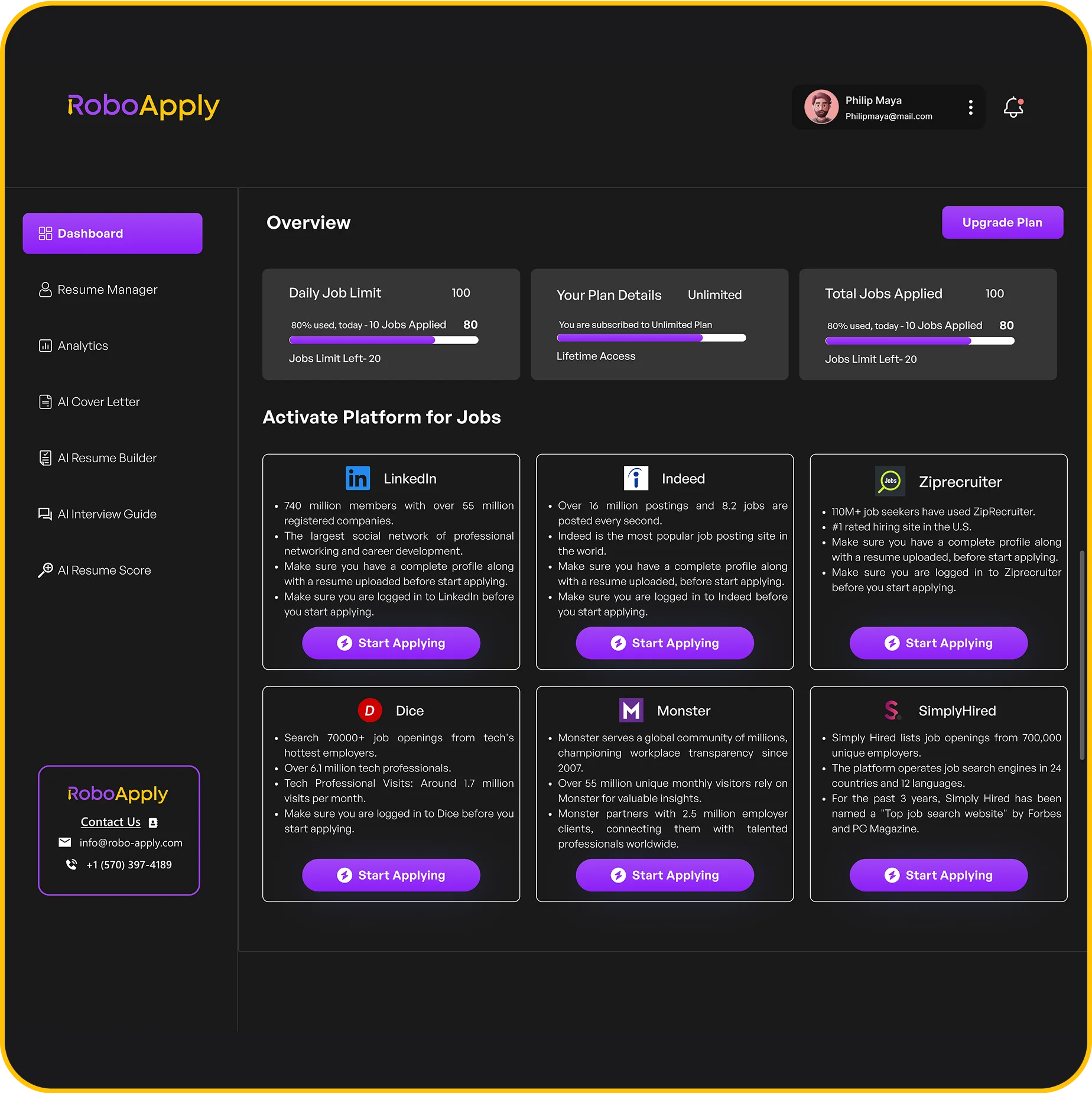
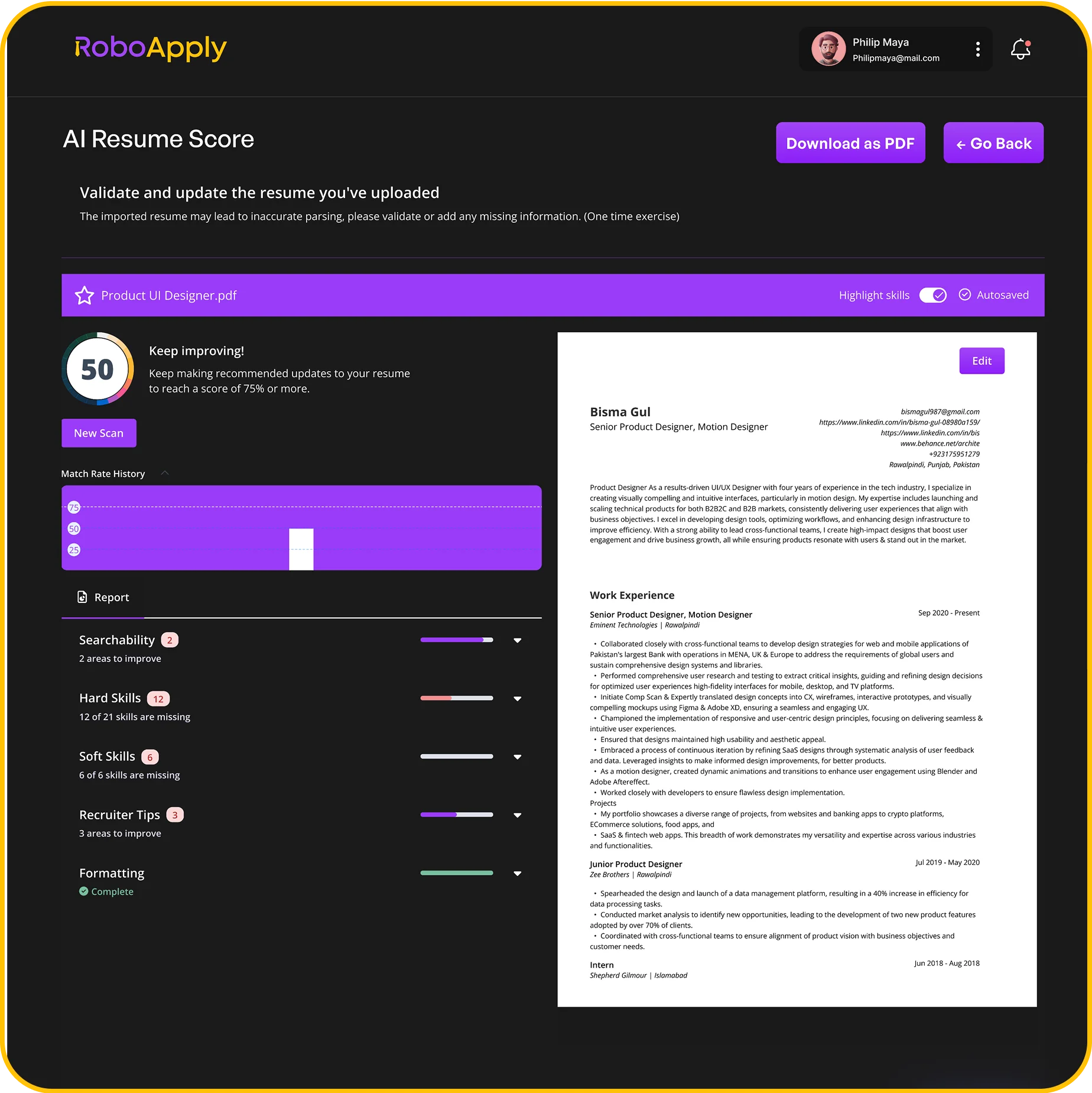
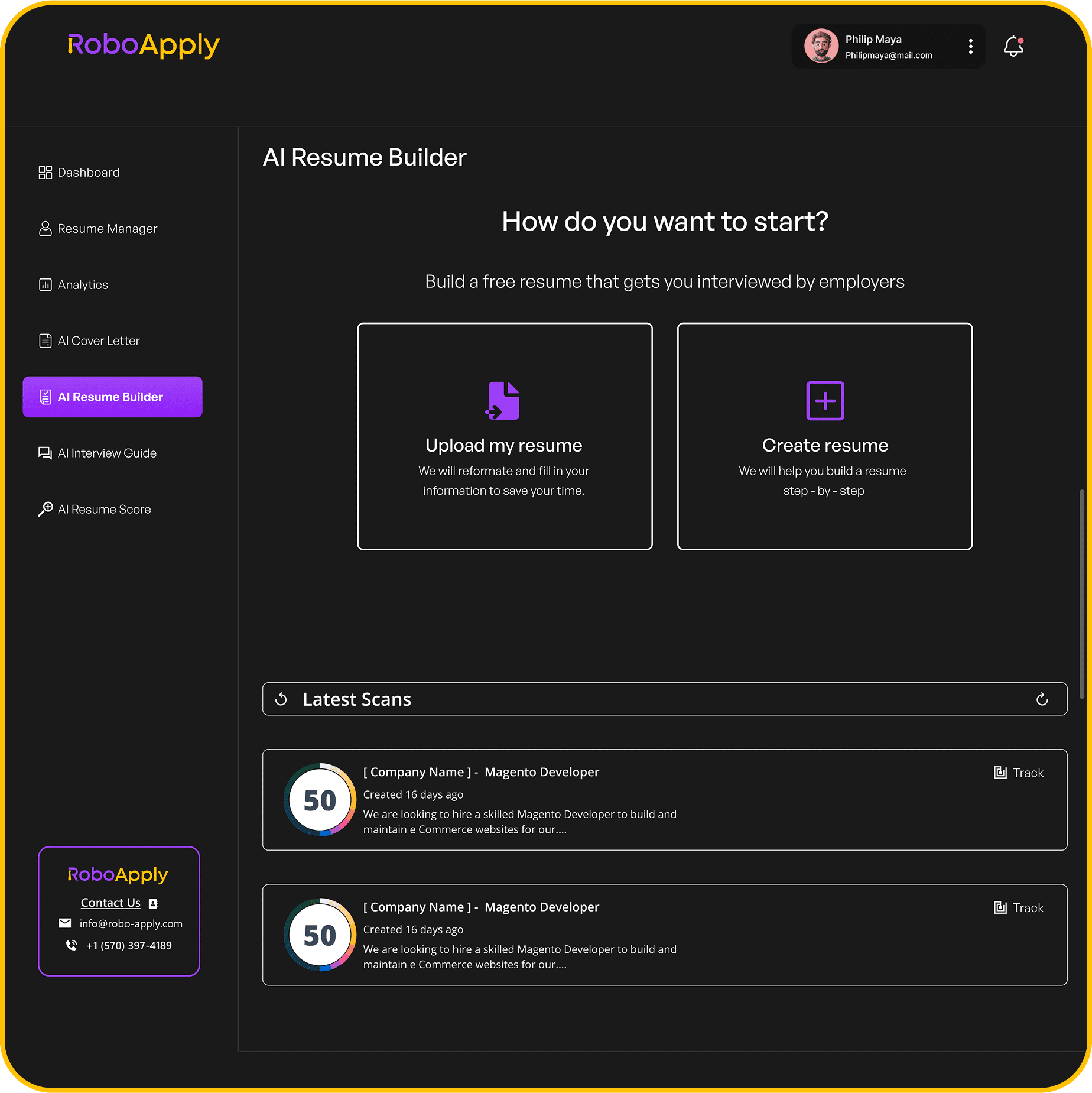
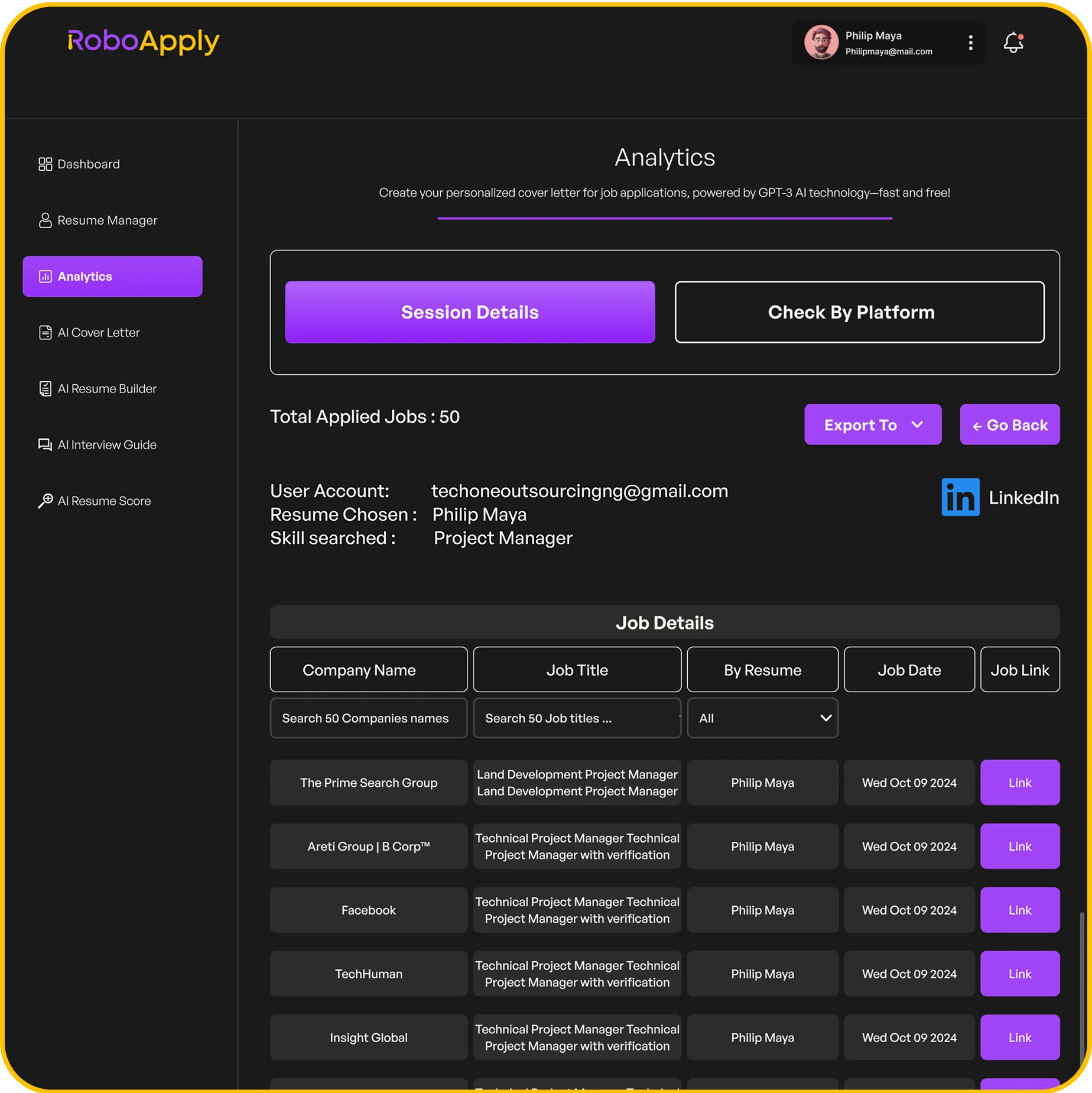
RoboApply’s AI Resume Builder helps you create Indeed-optimized resumes that increase employer interest. When employers see strong applications, they’re more likely to respond to messages. Your profile stands out from generic submissions.
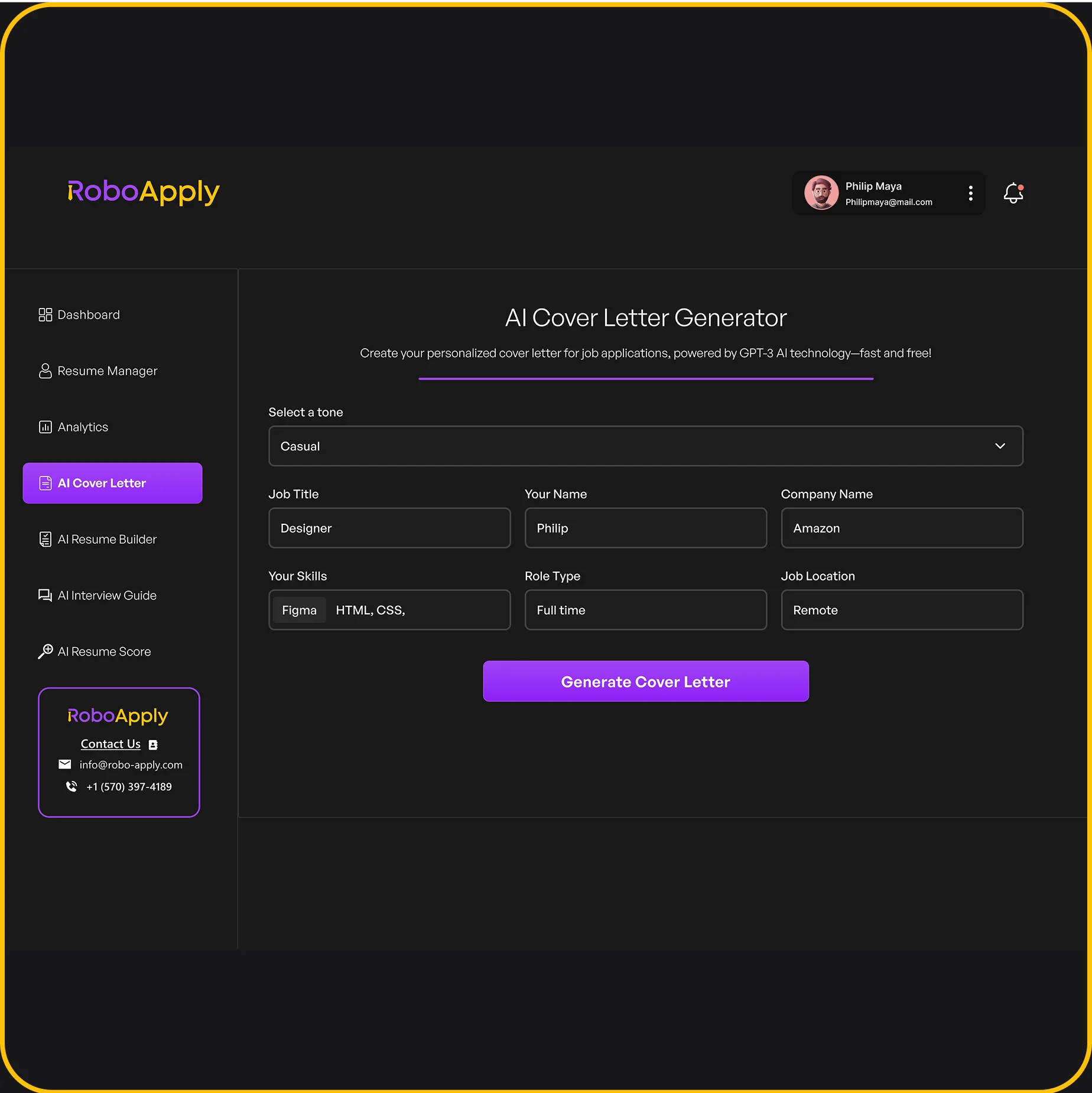
The AI Cover Letter Generator creates professional correspondence quickly. Your messaging maintains consistent quality across all employer interactions. The system optimizes for professional tone automatically.
AI Auto Apply submits applications to hundreds of Indeed positions matching your profile. Your credentials reach more employers efficiently. You’re not manually applying and messaging repeatedly.
Analytics dashboard tracks which messaging approaches generate responses. You’ll see patterns in what works. This data helps you refine your Indeed communication strategy.
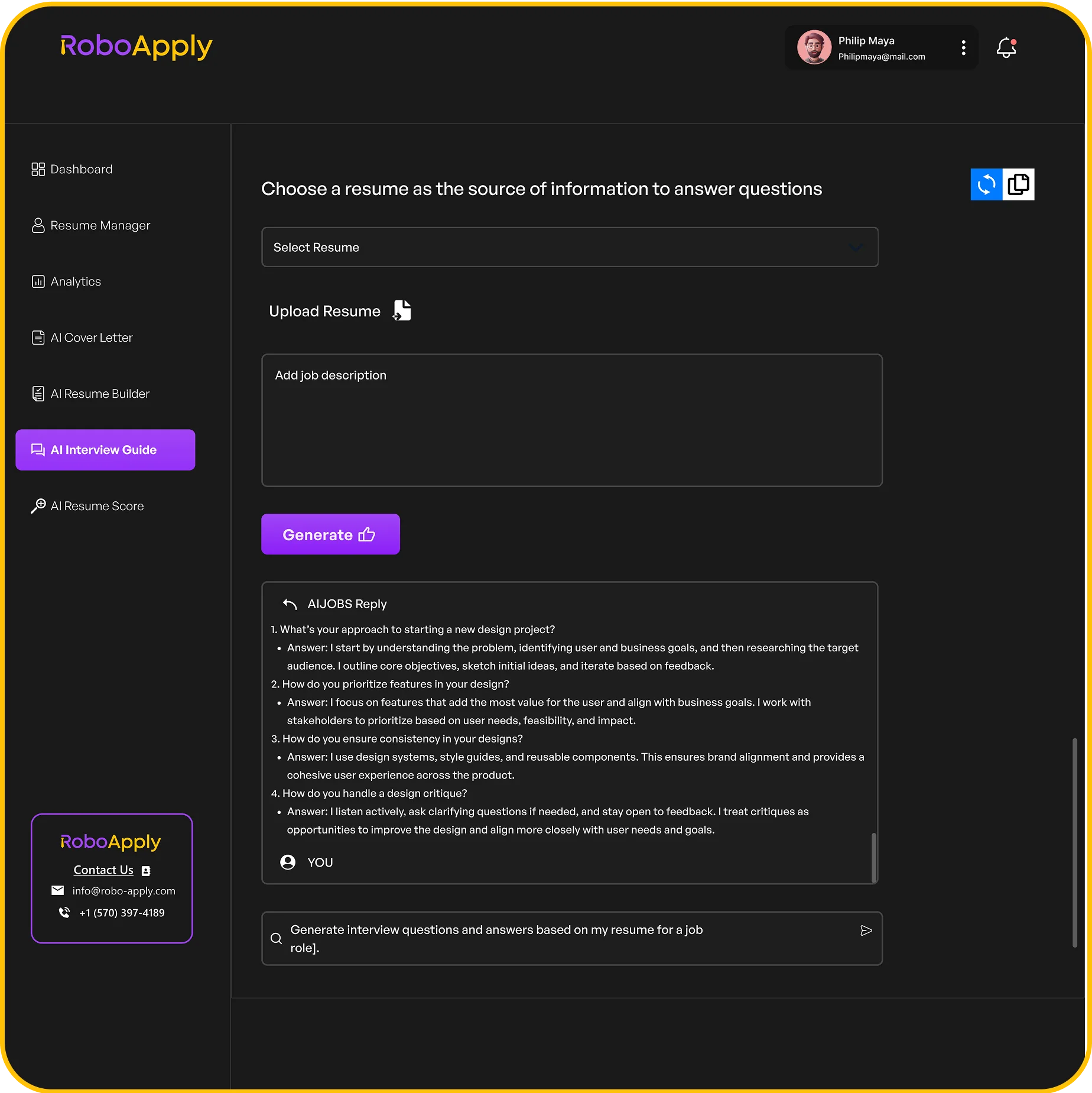
Interview Copilot prepares you for conversations that messaging creates. When employers respond positively, you’ll be ready for next steps. The tool helps you maintain momentum through the hiring process.
Frequently Asked Questions
How do I message an employer on Indeed?
Click “Messages” in top right, select “New Message,” search the employer’s company name, write your message professionally, and click “Send” to contact them.
Can you message employers before applying on Indeed?
Yes, you can message employers before applying if they have messaging enabled. Ask clarifying questions about requirements or position details before submitting applications.
How long should my Indeed employer message be?
Keep Indeed messages under 150 words. Brief, focused messages respect employer time. State your purpose clearly in 3-4 sentences maximum for best results.
What should I say in my first Indeed message?
State the position you’re interested in, mention one relevant qualification, ask a specific question, and thank them. Keep it professional and concise.
Do employers actually respond to Indeed messages?
Yes, about 40-50% of employers respond to professional messages. Response rates improve with personalization, clear questions, and appropriate timing after applications.